The API lets external systems read and write an organization’s data without using the web app — useful for connecting an e-commerce platform, a POS, a billing service, or your own scripts. All endpoints are JSON over HTTPS. The same keys also connect an AI assistant over MCP, described further down. If you are not writing code yourself, you can hand this page to whoever is building the integration. Examples use our sample business, Demo Company Inc.
Create an API key
Every request needs a valid API key. Each key belongs to a single organization, can be limited to specific scopes, and can be given an expiry date. Keys live in the API keys section of Settings → Security, just above Authorized applications. Only Owners and Admins can create, edit, rotate, or revoke keys — other members see a notice instead of the Create API key button.
To create an API key:
- Open Settings → Security. The page asks you to confirm your identity first — a fresh two-factor code, or your password if you have not set up two-factor authentication — then scroll to API keys.
- Select Create API key and give it a Label that says what it is for (for example “Storefront sync” or “Claude desktop”).
- Choose when it Expires: Never, In 30 days, In 90 days, or In 1 year. An expired key is refused exactly like an invalid one, so pick a window that matches how often you are willing to re-issue it.
- Tick the Scopes the integration needs, or leave them all unchecked for full access (see Scopes below).
- Select Create, then copy the key shown on screen and store it securely — it is displayed only once.
Each key in the list shows its prefix and last four characters, a status badge (Active, Expired, or Revoked — an Active key within seven days of its expiry also carries an Expires soon badge), a Full access badge or one badge per scope, when it was created, when it was last used, and when it expires. Every key that has not been revoked has an Edit button, a Rotate button, and a red trash button. Edit changes the label or scopes without changing the key value, so the integration keeps working; it cannot change the expiry. Rotate asks you to confirm, then mints a replacement with the same label and scopes and stops the current value working immediately, so paste the new key in straight away. The replacement never expires, even if the old key had an expiry — to keep an expiry, create a new key with the window you want and revoke the old one instead. The trash button revokes the key for good once you confirm “Revoke this API key?”. An expired key still shows those buttons, but none of them does anything: it cannot be edited, rotated, or revoked, so create a new one.
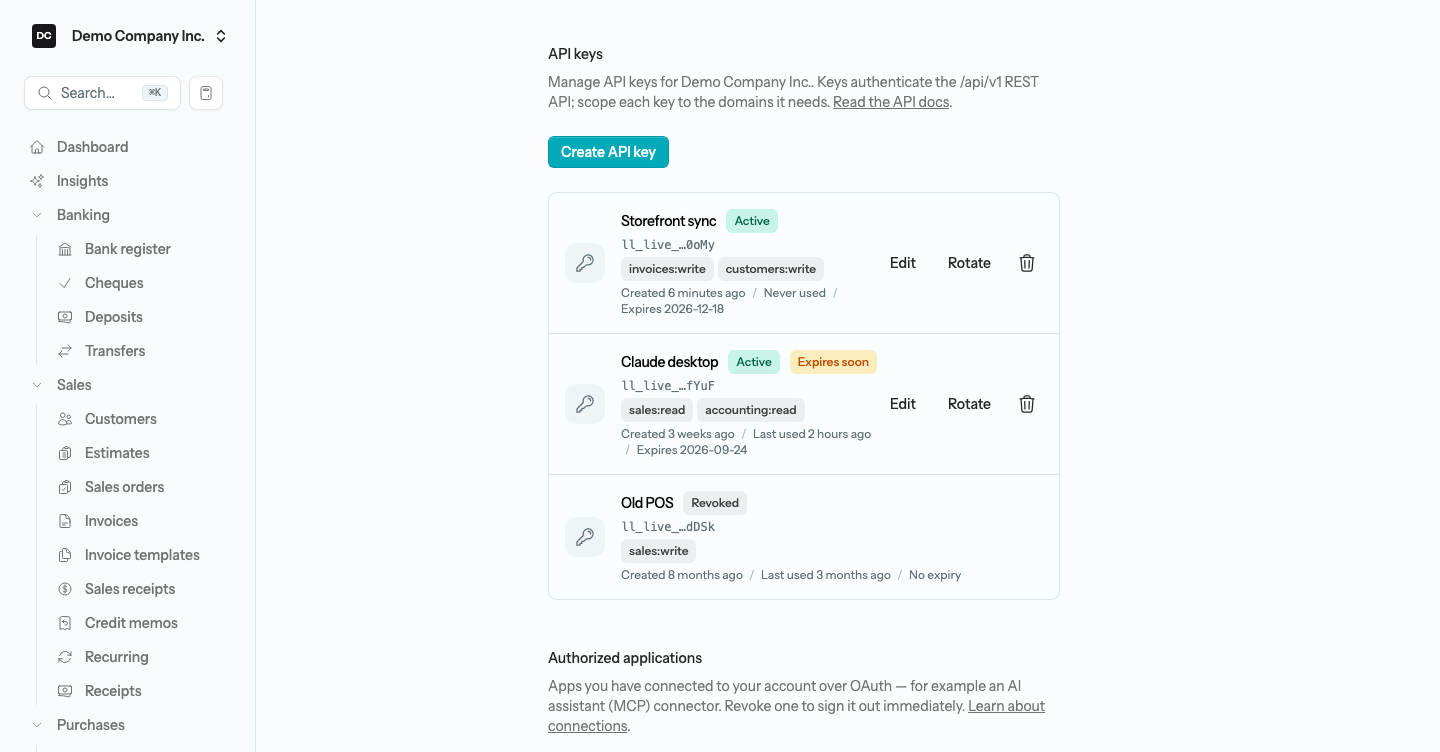
Heads up. The full key is shown once, at creation or rotation. If you lose it you cannot recover it — you rotate or create a new key and revoke the old one. Treat keys like passwords and never commit them to source control.
Authentication
Pass the key in either header on every request. The key identifies the organization, so there is no organization id in the URL:
Authorization: Bearer YOUR_API_KEY
# or
X-Api-Key: YOUR_API_KEY
Scopes
Scopes come in two tiers. A domain scope is written domain:action — sales, purchases, banking, accounting, inventory, tax, or settings, each with read or write — and grants every resource under that domain. Open Refine by resource under a domain in the Create API key dialog to grant narrower resource scopes instead, such as invoices:read or invoices:write, and the badge on the key shows exactly that. Each endpoint checks its own resource scope (invoices:write for POST /invoices), and a key holding the parent domain scope satisfies it as a superset. A write scope also grants read. A key with no scopes selected has full access. A request whose key lacks the scope returns 403.
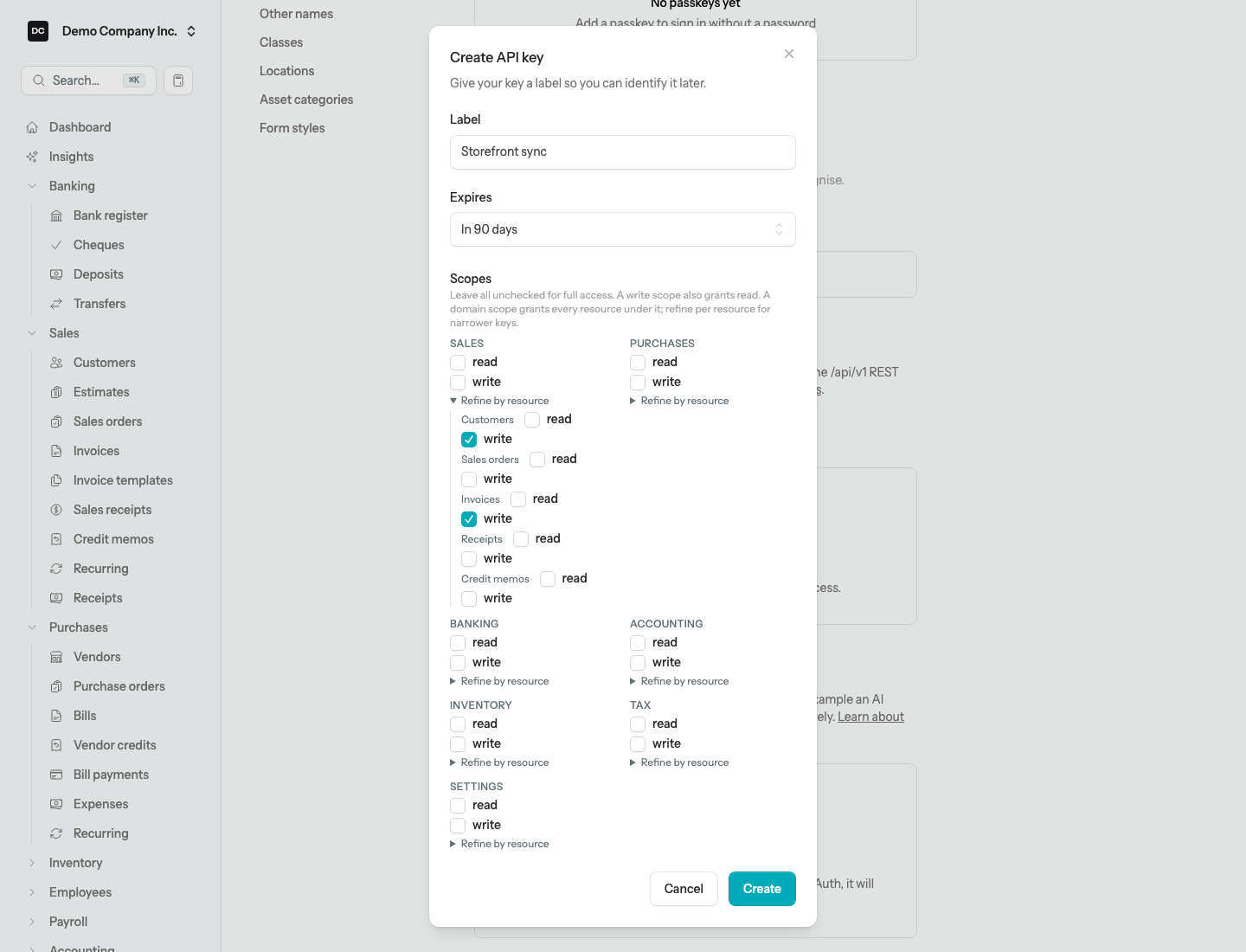
Tip. Give a storefront sync invoices:write and customers:write rather than sales:write: it can then create customers and invoices but not touch receipts, credit memos, or sales orders, and revoking it never disturbs your other integrations.
Document lifecycle
- POST creates and posts a document by default; send “post”: false to create a draft.
- PATCH edits a draft, or reposts a posted document in place where supported (invoices, credit memos, receipts, bills, bill payments, journal entries, deposits, cheques). A voided document is frozen, and so is a journal entry that another document created — an invoice’s or a bill’s entry, for example: PATCH /journal-entries/{id} on it returns 409, so change the invoice or bill instead.
- Documents without in-place repost (stock adjustments, transfers, tax-return payments) return 409 if edited after posting — void and recreate.
- DELETE hard-deletes a draft, or voids a posted document with a reversing journal entry. Voiding an already-voided document returns 409.
- Document numbers (invoice_no, bill_no, deposit_no, cheque_no, …) are optional on create — omit one and the next number in the organization’s own format is assigned. They are unique per organization; sending one that already exists is a 422 naming the field. Deposits, journal entries, and cheques accept a number on PATCH as well; other types keep their number once created. Two exceptions: cheque_no is required and may repeat (“EFT”, “DD”), and entry_no and transfer_no are only checked by the database, so a duplicate there does not come back as a field error.
- While someone has a record open for editing in the web app, PATCH, DELETE, and actions such as /post on that record return 423 with a Retry-After header. Reads and creates are never refused.
- Amounts are integer cents; dates are YYYY-MM-DD.
Note — One person edits a record at a time. The 423 is the API side of the app’s edit locks: whoever opens a record to edit it in the web app holds a short lease, other members see who is editing instead of the form, and Owners and Admins can take over. See Settings → Edit locks for how a lock is held and released.
Base URL & spec
https://your-lineledger-url/api/v1The full machine-readable OpenAPI spec (version 1.2.0, covering every resource) is available without a key at https://your-lineledger-url/api/v1/openapi.json. Import it into Postman, Insomnia, or your code generator.
Errors
Every error response is a bare JSON envelope with a single message field — and a field-keyed errors object on 422. A 500 looks the same shape, so your client only has to parse one format.
401— missing, invalid, revoked, or expired API key. A missing key returns the message “Missing API key”; an invalid, revoked, or expired key all return “Invalid API key”, so the response never says which of the three it was.403— the key lacks the required scope.404— the resource was not found in this organization.409— the operation conflicts with the document’s lifecycle (editing a posted, non-repostable document; editing a journal entry another document created; editing or voiding a voided one).422— validation failed, the period is locked, the entry is unbalanced, or a document number is already taken. The body carries a message and, for validation, a field-keyed errors object.423— someone is editing the record in the web app right now. Nothing was written; wait the number of seconds in the Retry-After header (the time left on their lease, at most 120 by default), then try again. The message names the kind of record, never who is editing it. Bank reconciliations, stock adjustments, and tax-return payments never return 423, and a wrong-role contact (PATCH /vendors/{id} on a customer) still answers 404.429— rate limit exceeded: 120 requests per minute per IP and 60 per minute per key, whichever is hit first. The 429 itself carries no Retry-After or X-RateLimit-* headers, so wait up to a minute before trying again. Requests that get through carry X-RateLimit-Limit and X-RateLimit-Remaining for whichever limit is closest to running out, so you can slow down before you reach it.500— an internal error. The body is still a {“message”: ”…”} envelope so the same parser handles it.
Note. The throttle runs before key authentication, so malformed keys are rate-limited too. If you hit 429, back off and retry — do not tighten the loop. All error responses, including 500s, share the same bare {“message”: ”…”} envelope (422 adds an errors object), so client code only needs one parser.
Auditing & key lifecycle
Every write made through the API is recorded in the organization’s audit log and attributed to the key that made it, not to a user — so automated activity is easy to tell apart from manual work. Creating, editing, rotating, and revoking keys are logged as security events. Removing a member or lowering their role also revokes, on the spot, every API key that person created for the organization — so hand a departing admin’s integrations a fresh key minted by someone who stays. The API keys panel is pinned to the organization it opened for, so opening another organization in a new tab from the switcher never re-targets a key you are creating or revoking — the panel’s heading tells you which organization it manages.
Best practices
- Treat API keys like passwords — never check them into source control.
- Generate a separate, narrowly-scoped key per integration, with an expiry, so you can revoke one without breaking the others.
- Handle 422 by surfacing the message to the operator; do not auto-retry.
- Handle 423 by waiting for Retry-After and retrying a few times — not in a tight loop. If the record is still being edited, queue the change and try again later.
- Idempotency: posting the same invoice twice creates two invoices. Supply your own document number on create — a retried request that would duplicate it gets a 422 instead of a second document.
- Read balance_cents off an invoice and unapplied_cents off a receipt instead of doing the arithmetic yourself; the server’s figures already account for credits and reconciled balances.
What’s new in 1.2.0 for integrators
Nothing was removed or renamed, so a 1.1.0 client keeps working. One request can now be refused where it used to succeed — filing a tax return that does not agree with the ledger. What changed:
POST /invoices/{invoice}/refund— pays back a customer’s overpayment — the unapplied credit on one of their payments — as a negative receipt from a bank or Undeposited Funds account. It takes refunded_receipt_id, refund_date, amount_cents (no more than the payment’s unapplied_cents), and deposit_to_account_id.unapplied_cents— a receipt’s unapplied credit now also nets out what has been refunded from it, and a new refunded_cents shows that amount. A refund receipt carries refunded_receipt_id and from_invoice_id, and so does a refund cheque.- Negative deposit lines — an account line on a deposit may have a negative amount_cents; only 0 is refused.
- Tax return adjustments — a tax return takes adjustments (kind, account_id, amount_cents, memo) and excluded_journal_line_ids; leave either out on an update to keep what is saved. Returns report other_adjustments_cents, adjustment_journal_entry_id, and the reconciliation against the tax payable account.
POST /tax-returns/{taxReturn}/file— answers 422 when the return does not agree with the tax payable account, unless accepted_difference_cents names the current difference. Filing posts the adjustments coded to other accounts, and voiding the return reverses that entry.- OpenAPI 1.2.0 — the spec documents all of the above.
What’s new in 1.1.0 for integrators
Nothing was removed or renamed, so a 1.0.0 client keeps working. What changed:
423 Locked— PATCH, DELETE, and every POST /{resource}/{id}/{action} return 423 with Retry-After while a member has that record open in the web app. Never for GET or for creates; never for bank-reconciliations, stock-adjustments, or tax-return-payments, which take no edit lock; and a wrong-role contact still answers 404. Nothing is written on a 423, so the same request can be sent again unchanged.- Negative invoice lines — unit_price_cents may be negative on an invoice line to record a discount as its own line. The invoice must still net above zero, or the request fails with 422 (“Use a credit memo for a net credit”). Credit memos and sales orders keep unit_price_cents at zero or above.
balance_cents/unapplied_cents— an invoice now returns balance_cents (total less receipts applied less anything reconciled away by a journal entry) and a receipt returns unapplied_cents (the customer’s credit on that receipt). To apply that credit later, re-save the receipt with its full header and the complete applications list — the list is replaced wholesale.sales_rep_id— accepted on invoice and credit-memo create and update, and echoed in the response. The contact must be an employee in your organization; its id is the read-only Contact ID (API) on the employee dialog — see Employees.- Cheques repost — PATCH /cheques/{id} now reposts a posted cheque in place instead of returning 409; only a voided cheque is frozen.
payee_address— cheques accept and return a payee address block (line1, line2, city, region, postal_code, and a two-letter country). Omit it and the payee contact’s billing address is used. Either way it is snapshotted onto the cheque, so editing the contact later never changes a cheque already written.- No tax on receivable or payable cheque lines — a cheque line coded to Accounts Receivable or Accounts Payable names the customer or vendor it settles in lines.*.contact_id. The API insists on it only when you create a cheque that posts or PATCH one already posted; POST /cheques/{id}/post on a draft does not check, and a line without one falls back to the cheque’s payee — so set it before you post. Any tax code on such a line is dropped: it comes back with tax_cents of 0 and the cheque total includes no tax for it. Nothing warns you — read the response back if you rely on the tax.
- Document numbers — the number you send on create is saved and must be unique per organization; a duplicate is a 422 naming the field rather than a server error. PATCH /deposits/{id} accepts a new deposit_no and checks it against every other deposit.
- Cheque numbers may repeat — cheque_no is required but no longer unique, so “EFT”, “DD”, or “e-transfer” can be reused on every payment made without a physical cheque. The web form only warns; the API accepts it silently.
- Items no longer overwrite API lines — when someone tags a line you created with a catalog item in the web app, the line keeps its own description, unit price, and tax; only the account follows the item.
- OpenAPI 1.1.0 — the spec now documents /transfers, so a generated client covers every resource.
Business Q&A MCP server
The Business Q&A server is a read-only MCP endpoint that lets an AI assistant — Claude, ChatGPT desktop, Cursor, or anything else that speaks Model Context Protocol — query Demo Company Inc.’s books in plain English. The assistant calls one of the tools below, the server runs the same reporting services the web app uses, and the answer comes back with the numbers already crunched. No data is written and no journal entries are created.
Tools
The server exposes twenty read-only tools. Each one runs the same reporting service that powers the matching page in the web app, so the numbers always agree. The assistant picks whichever fits the question, and every figure is already in your home currency. The first column gives each tool’s title and, beneath it, the name your MCP client may show when it asks permission to call it.
| Tool | What it returns | Notes |
|---|---|---|
Financial summaryfinancial-summary-tool |
Income and expenses for the period, year-to-date net income, cash on hand, and money owed to and by the organization. | The plain-language "how are we doing?" snapshot. |
Profit and lossprofit-and-loss-tool |
Income and expenses broken down by account, with the net profit or loss for a period. | Accepts a friendly period (last_quarter) or explicit start/end dates. |
Balance Sheetbalance-sheet-tool |
Assets, liabilities, and equity as of a date, with the accounting equation. | As-of date defaults to today. |
Statement of Cash Flowscash-flow-tool |
Operating, investing, and financing sections plus the net change in cash for a period. | Derived from the GL — always reconciles. |
Trial balancetrial-balance-tool |
Every account with a non-zero balance in its debit or credit column, with totals that tie out. | Good for spot-checking before period close. |
Accounts receivableaccounts-receivable-tool |
Customers with an outstanding balance, largest first, and the total owed to you. | Answers "who owes me money?" |
Accounts payableaccounts-payable-tool |
Vendors the organization still owes, largest first, and the total payable. | Answers "who do I owe?" |
Account Balance & Activityaccount-balance-tool |
Balance and recent ledger activity for a single account by name or code. | Useful for "what's in chequing right now?" questions. |
Sales reportsales-report-tool |
Sales grouped by customer, by item, or by sales rep, ranked by revenue. | Mirrors the Sales report in the web app. Grouping by rep covers invoices and credit memos only — sales receipts carry no rep. |
Inventory statusinventory-status-tool |
On-hand quantity, reorder point, and low-stock flags per tracked item. | Set low_only to see just the items needing a restock. |
Find Contactfind-contact-tool |
One customer or vendor with their AR and AP balances and a recent-activity summary. | Looks up by partial name. |
List invoiceslist-invoices-tool |
Invoices filtered by status, customer, sales rep, or issue-date range, newest first, each showing the rep credited (or "no rep"). | Handy for "what's overdue?" and "what did Jane sell this month?" questions. |
Sales Tax Summarysales-tax-tool |
Tax collected, paid, and net owed per agency for a period. | Lines up with the Sales tax report. |
Form 1099 Vendor Totals (US)form1099-tool |
1099-NEC vendor payment totals for a calendar year. | US organizations only; notes the $600 reporting threshold. |
Company profilecompany-profile-tool |
Organization type, jurisdiction, home currency, fiscal year with the current year's start and end dates, tax numbers, CRA filing profile, and enabled feature modules. | Frames reporting periods correctly. |
Chart of accountschart-of-accounts-tool |
Every account with its code, name, subtype, GIFI code, API id, and current balance, grouped by type. | Finds the account_id the REST API and the propose tools expect — the code is not the id. |
Items catalogitems-catalog-tool |
Every product and service with its name, SKU, default price, inventory tracking, quantity on hand, and API id. | Finds item_id — the SKU is not the id. |
Tax codes & agenciestax-codes-tool |
Every tax agency and tax code with its rate, what it applies to, whether it is recoverable, its agency, and API id. | Finds tax_code_id. |
Contacts directorycontacts-directory-tool |
Every customer and vendor with their display name, roles, email, active status, and API id. | Finds contact_id; for one contact's balances use Find Contact. |
Payment methodspayment-methods-tool |
The configured payment methods with each one's name, whether it is a cheque method, active status, and API id. | Finds payment_method_id for receipts and bill payments. |
The last five listings exist so an assistant can look up the numeric API id a REST payload takes as account_id, item_id, tax_code_id, contact_id, or payment_method_id — codes, SKUs, and names can be renamed, ids cannot. Each of those five, plus the company profile and the CRA GIFI catalog, is also published as a resource the assistant can read on its own (seven in total; the listings appear as both because some clients only surface tools). The server also offers four guided prompts: month-end close review, AR collections, sales-tax filing prep, and an entity-aware year-end tax-prep checklist.
Connection methods
You can connect an MCP client two ways: with an API key you create yourself, or with OAuth — sign in once and let the client manage tokens for you. Pick whichever your client supports best. Either way the assistant sees exactly one organization.
To connect with an API key:
- Open Settings → Security, scroll to API keys, and select Create API key. Name it after the assistant (“Claude desktop”) so you can revoke it cleanly later, and give it read scopes only — the Q&A server never needs write.
- Copy the key — it is shown only once.
- In your MCP client, add a new server pointing at the URL below and paste the key into the Authorization header as Bearer YOUR_API_KEY.
https://your-lineledger-url/mcp/businessTo connect with OAuth:
- In your MCP client, add a server pointing at the URL below, substituting your organization’s slug for {company-slug}. The slug is the first segment of the organization’s web address — demo for Demo Company Inc.
- Select Authorize. The client opens a browser window on the LineLedger sign-in page.
- Sign in with your normal LineLedger account.
- Approve the consent screen. It is titled Authorize followed by the client’s name, says the application will be able to “Use available MCP functionality”, and shows the email you are signed in as — select Authorize, or Cancel to back out. It does not list the organization or the tools; the organization comes from the slug in the URL, and every tool call is still checked against your membership.
https://your-lineledger-url/mcp/business/{company-slug}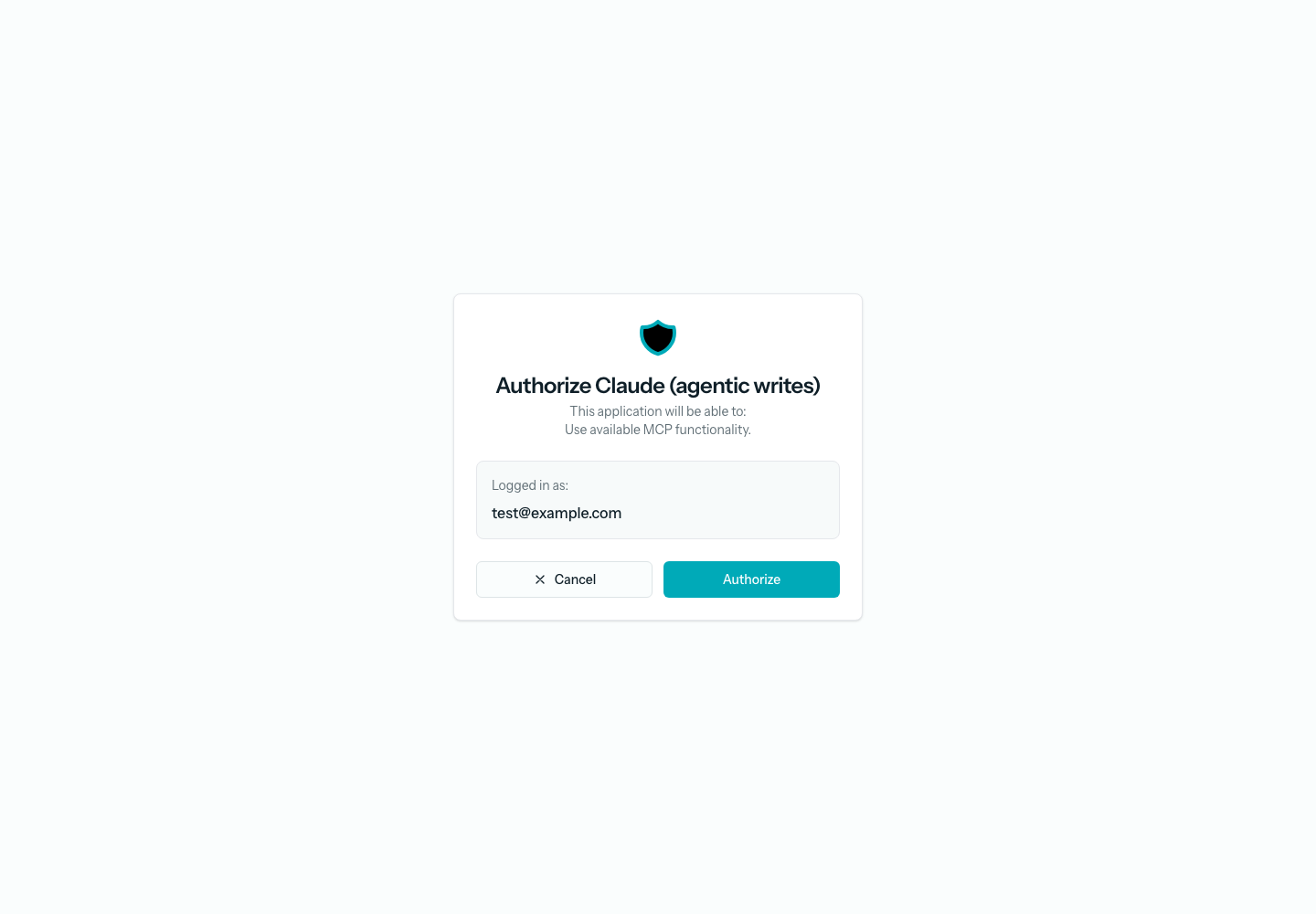
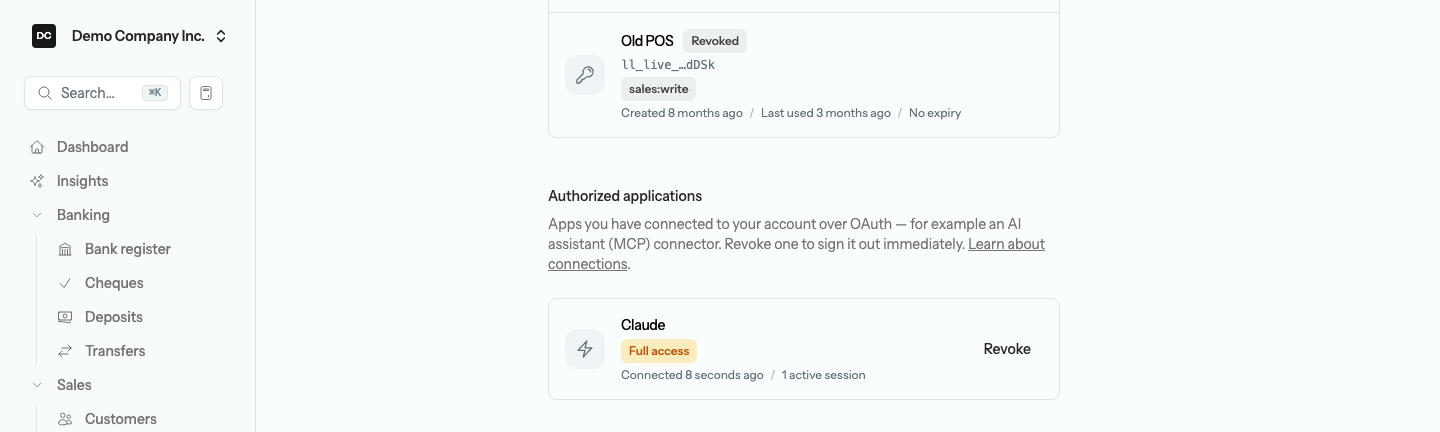
OAuth issues a 15-day access token and a 30-day refresh token, so a well-behaved client keeps working for weeks without prompting you to sign in again. The {company-slug} in the URL is resolved after you are authenticated and every call is re-checked against your live membership, so removing someone from the organization cuts off their MCP connections at once; unused tokens also lapse on their own after the windows above. To cut off a connection yourself, open Settings → Security → Authorized applications: each connected app shows when it connected and a Revoke button, and revoking signs it out immediately — it must be reconnected to be used again.
Note. The Business Q&A server is strictly read-only — no tool on it creates, edits, posts, or voids anything. To let an assistant draft documents for you, use the separate write-enabled server described next, or give an integration an API key with the right :write scope and point it at the REST API above.
Agentic writes: let an assistant draft documents
A second, write-enabled MCP server lets an assistant go beyond answering questions and actually draft an invoice, a vendor bill, a paid expense, or a manual journal entry for Demo Company Inc. It is deliberately kept apart from the Q&A server and is off by default. Because an MCP client has no screen on which a human can eyeball a draft before it posts, every change runs through a mandatory two-step propose-then-confirm handshake — the assistant can never write to your books in a single call. It connects the same two ways as the Q&A server:
https://your-lineledger-url/mcp/business-actions
# or, for the one-click OAuth connector:
https://your-lineledger-url/mcp/business-actions/{company-slug}
The propose → confirm handshake
- The assistant calls a propose tool — propose invoice, propose bill, propose expense, or propose journal entry. The server validates the customer or vendor, every line account, and the amounts, computes the exact totals, and stages the draft. It returns a plain-language preview, the line “Nothing has been written yet. This is a proposal only.”, and a token. Nothing is written to the ledger at this step.
- The assistant shows you the preview and waits for your explicit go-ahead.
- Once you say yes, the assistant calls the confirm-proposal tool with that token. Only this step writes: it replays the staged payload through the very same Save action and poster the web app uses, so the lock-date rule and the audit trail both apply automatically.
Note — Amounts are in dollars here. Unlike the REST API, the propose tools take amounts in dollars (for example a unit price of 19.99) — the server converts to exact integer cents for you. A proposal posts to the ledger by default; the assistant can pass post=false to stage a draft document instead. Accounts accept the numeric API id, an exact account code, or a name; customers and vendors accept the numeric API id or a display name; a line’s tax code takes only the numeric tax_code_id. The Q&A listings above are how the assistant finds them.
Turning it on
Agentic writes are protected by two independent switches, and both must be on. If either is off, every propose and confirm call is politely refused with a message saying which switch is missing.
- The operator switch — the MCP_WRITE_ENABLED environment variable, set by whoever runs your LineLedger server. It is off by default and fails closed. If you run LineLedger yourself, set MCP_WRITE_ENABLED=true in the server’s environment. It is documented with the other environment variables in the README, the operations manual that Self-hosting & upgrades points you to.
- The organization switch — open Settings → Organizations, select your organization, and find the AI assistant writes (MCP) box. Turn on Allow AI assistant writes; it saves as soon as you flip it. The switch applies to this organization only and is also off by default, so an operator flipping the server switch does not silently turn writing on for every organization. Until the operator switch is on, this one is disabled with a note saying so.
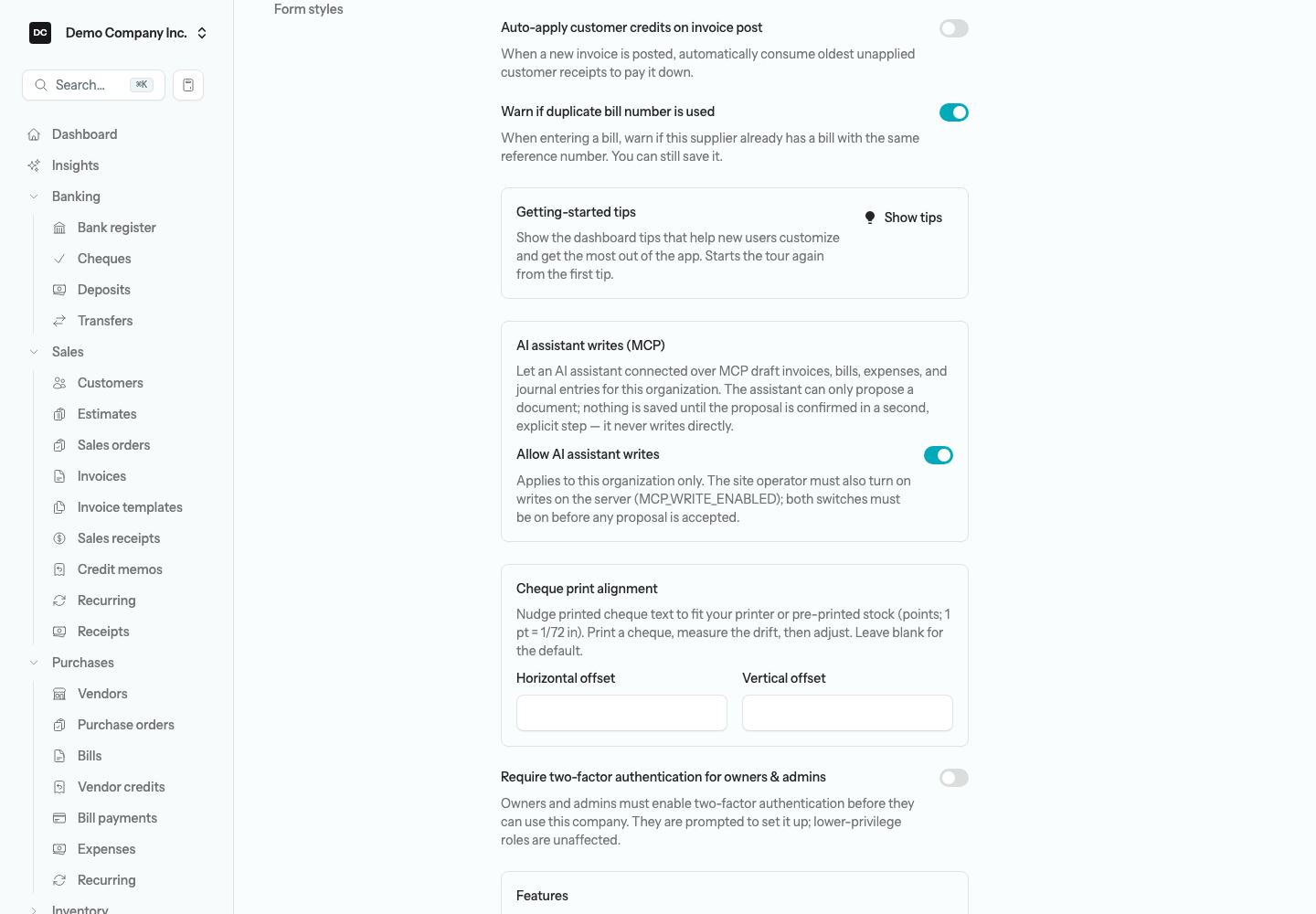
Heads up. Treat agentic writes as a power tool. Even with both switches on, the assistant must show you each proposal and you must approve it before anything posts — never confirm a draft you have not read. Line items must use ordinary income, expense, asset, or liability accounts; control accounts (Accounts Receivable, Accounts Payable, Undeposited Funds, Retained Earnings) are rejected because the ledger resolves those itself.
The audit trail
Every proposal is recorded as a durable row — who proposed it (the API key or the signed-in staff member), the exact payload, the preview, and its status (pending, confirmed, expired, or rejected). The row never touches the general ledger on its own; only a confirm posts, and the posted journal entry is linked back to the proposal that produced it. Confirming the same token twice is a safe no-op that returns the original result instead of double-posting, and an unconfirmed token expires after 24 hours. If a confirm fails — say the period is locked or the entry will not balance — the whole commit rolls back, nothing is written, and the assistant is told to fix the issue and propose again.
Interactive reference
The in-app documentation includes an interactive reference covering every endpoint, request body, and response, generated from the OpenAPI spec. Find it under Documentation → API inside LineLedger, or point any OpenAPI viewer at your instance’s /api/v1/openapi.json.