Multi-currency lets you trade with customers and vendors in other currencies while keeping a single set of books. Your organization has one home currency — the currency your financial statements are always expressed in — and you enable the foreign currencies you deal in alongside it. Our sample business, Demo Company Inc., keeps its books in CAD with USD enabled and a US customer, Stateside Imports (USD), to bill in dollars.
How multi-currency works
Every journal entry is posted in home-currency amounts, so the ledger and every report always balance in one currency. When a transaction is in a foreign currency, the app also stores the foreign amount and the exchange rate it used, as a memo alongside the home figures. Reports read the home amounts; the foreign detail is there for reference and for revaluation.
Each customer or vendor transacts in one declared currency. All of their invoices, bills, and payments use it, and the app keeps separate receivable and payable control accounts per currency so foreign balances stay visible. Bank and credit-card accounts can be denominated in a foreign currency too, and the cheques, expenses, and deposits that move through them take that currency.
Note — Three things that lock. Your home currency is set when you create the organization, and Settings → Currencies treats it as fixed. The Currency box on Settings → Organizations still lets you pick another two-decimal currency (the Japanese yen and other currencies without cents aren’t offered), but changing it converts nothing — every posted amount keeps the value it was booked at — so leave it alone once the books have any activity. A customer’s or vendor’s currency locks once they have an invoice, bill, receipt, or payment on the books. And a bank or credit-card account’s currency is fixed once the account has activity. Set all three up correctly from the start. An organization that already kept its books in a currency without cents, such as the yen, before that rule keeps it and can still save its other settings, but it cannot enable foreign currencies or take card payments, and an organization backup from it cannot be restored.
Enable a currency
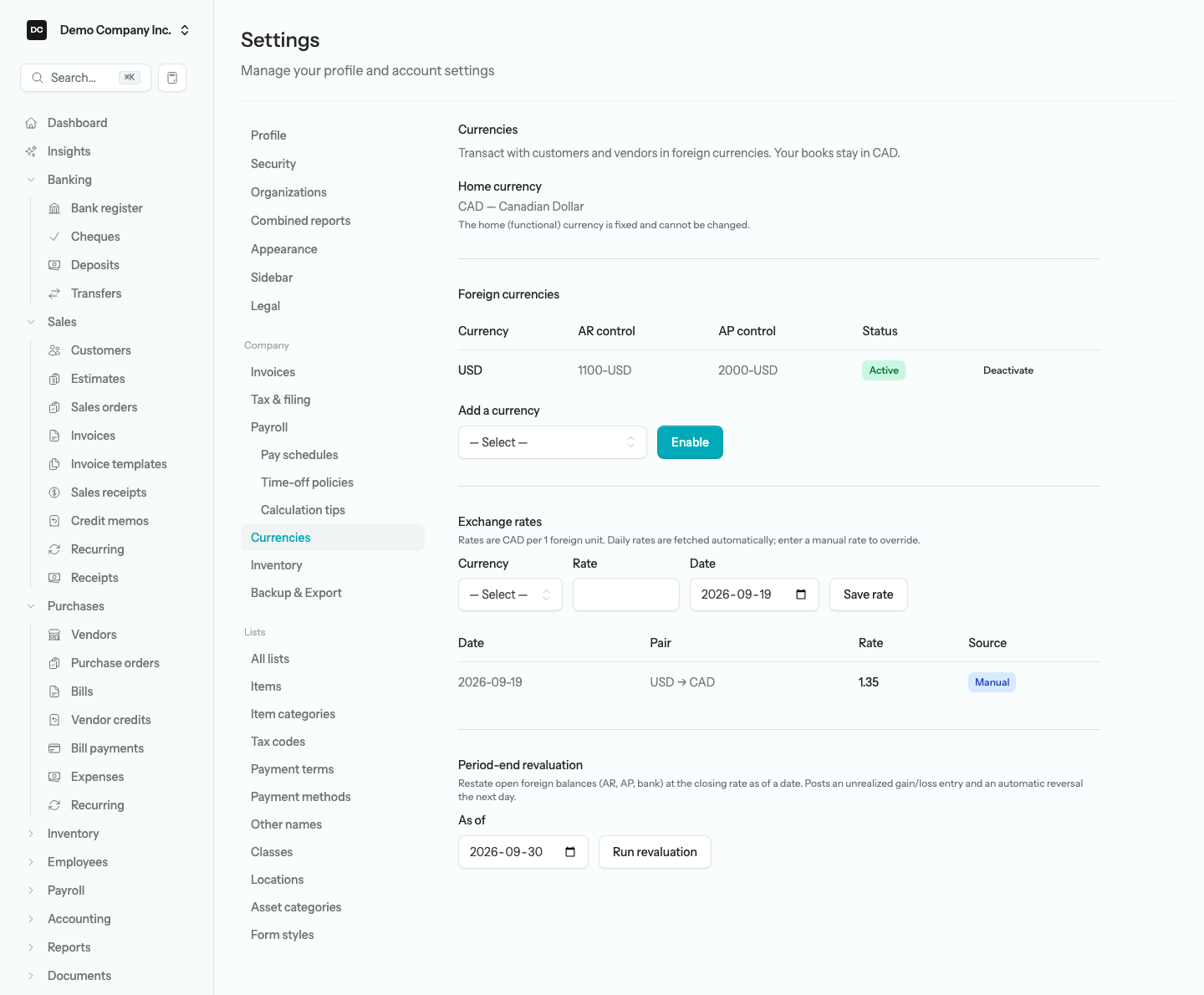
Settings → Currencies is where you enable the currencies you trade in. The page shows your home currency and lists each foreign currency you have turned on, with the codes of the receivable (AR control) and payable (AP control) accounts it uses and whether it is Active.
To enable a foreign currency:
- Open Settings and select Currencies.
- Under Add a currency, choose the currency from the list.
- Select Enable. The app creates its AR and AP control accounts automatically — for example, “Accounts Receivable (USD)” and “Accounts Payable (USD)” — and the Exchange rates and Period-end revaluation sections appear below.
Once enabled, a currency appears under Foreign currencies with an Active badge. Select Deactivate to stop offering it on new contacts and accounts; existing transactions are unaffected, but there is no Reactivate button on this page, so deactivate only when you are done with that currency. The list offers the major two-decimal currencies — USD, EUR, GBP, AUD, and the like. Currencies with no decimals or three, such as the Japanese yen, cannot be enabled yet.
Note — Two accounts appear the first time. The very first time you enable any foreign currency, the app also creates two Other Expense accounts: Exchange Gain or Loss (for realized differences when a foreign invoice or bill settles) and Unrealized Gain or Loss (for period-end revaluation), numbered 7990 and 7991 unless those codes are already taken. Single-currency organizations never see this clutter, and you will not have to create either account by hand.
Set a customer’s or vendor’s currency
The Currency box on the customer form (on the Payment & billing tab, shown once a foreign currency is enabled) and on the vendor form lists your home currency plus every active foreign currency. Leave it on the home currency unless that contact bills or pays in another one. Once the contact has an invoice, bill, receipt, or payment — draft or posted — the box is greyed out. The customer form explains “Currency is locked once the customer has transactions.”; the vendor form’s note reads “Currency is locked once a vendor has posted transactions.”, though a draft locks it just the same. Two customers, or two vendors, can only be merged when they share a currency. See Customers and Vendors.
Foreign bank and credit-card accounts
A US-dollar chequing account or a credit card billed in euros needs its own account in your chart, denominated in that currency. Once a foreign currency is enabled, the account dialog offers a Currency box for Bank and Credit Card accounts only; every other account stays in your home currency.
To add a foreign bank or credit-card account:
- Open Accounting → Chart of Accounts and select New account.
- Enter the Code and Name, and choose a Bank or Credit Card Type. A Currency box appears, set to your home currency — pick the foreign currency instead.
- Leave the opening balance blank. A foreign-currency account can’t take an opening balance here, but the Opening balance (optional) box may stay on screen after you pick the currency — it only gives way to a note saying so once the dialog refreshes. Anything you type in it is discarded when you save. Record the starting balance with a journal entry at the correct exchange rate instead.
- Select Save.
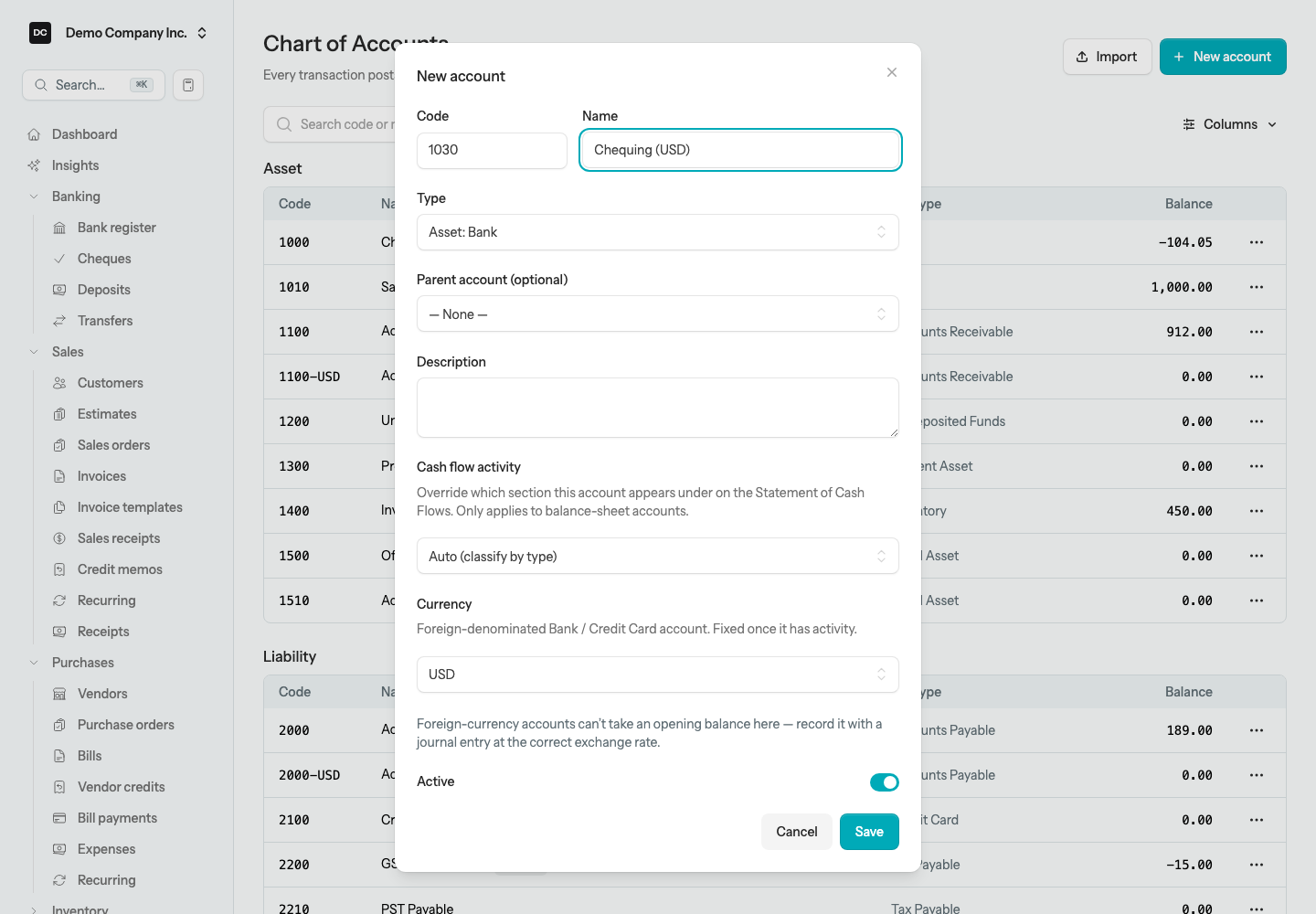
The account’s currency is fixed once it has activity — the box is greyed out on Edit after that. Turn on the Currency column from the column menu on the Chart of Accounts to see each account’s currency at a glance. Cheques and expenses paid from a foreign account, and deposits into one, are converted at the rate on their date exactly like a foreign invoice (see Foreign documents below). To move money between a foreign account and a home one, use a transfer: the form asks for the Amount sent and the Amount received and books any difference to Exchange Gain or Loss — see Banking.
Note — One person edits a record at a time. If a teammate already has an account, customer, vendor, or transfer open for editing, you see who is editing instead of the form, and Owners and Admins can take over. See Settings → Edit locks for how a lock is held and released.
Set an exchange rate
Rates are expressed as home-currency units per one foreign unit — so a USD rate of 1.35 means one US dollar is worth 1.35 Canadian dollars. Daily rates are fetched automatically each morning, but you can enter a rate by hand for a specific date, and your manual rate always wins over the fetched one.
When the app needs a rate for a date, it looks in this order: your manual rate for that date (or the most recent one before it), then the daily fetched rate on or before that date, then a one-time fetch for that exact date. Fetched rates come from a free European Central Bank feed (Frankfurter), which publishes on weekdays only and serves the last published rate on weekends and holidays. If you self-host, the morning fetch is one of the scheduled jobs your operator sets up — see Self-hosting.
To enter a rate by hand:
- On Settings → Currencies, find the Exchange rates section.
- Choose the Currency, enter the Rate, and pick the Date it applies to (it defaults to today).
- Select Save rate.
Each rate you save (and each one the app fetches) shows up in the recent-rates table below the form — Date, Pair (for example USD → CAD), Rate, and a Source badge reading Manual or Api so you can tell which is which. When you post a foreign invoice, bill, or payment, the rate in force on its date is locked onto that document — it never moves afterward, even if the rate changes the next day.
Tip — No rate for that exact date? A date with no rate of its own — a weekend, a market holiday, or a date still in the future — simply uses the most recent rate on or before it: your latest manual rate if you have one, otherwise the latest fetched rate. You are not asked to confirm it. Because a manual rate always comes first, an older manual rate keeps winning over newer fetched rates until you enter a more recent one. The app stops only when there is no rate at all on or before the date and the one-time fetch comes back empty too — for example, on a self-hosted server with automatic rates switched off. Then, on a document form, the post is refused with the message “No exchange rate available for USD→CAD on or before <date>.”, and a revaluation reports “Missing a closing rate — enter a manual rate for that date first.” Enter a manual rate for that date under Exchange rates and try again.
Foreign documents
A sales or purchase document takes its currency from the customer or vendor — invoices, credit memos, sales receipts, and customer payments follow the customer; bills, vendor credits, and bill payments follow the vendor. A cheque, expense, or deposit takes the currency of the bank or credit-card account it is paid from or deposited into. There is no currency picker on any of these forms: when you invoice Stateside Imports or enter a bill from a US vendor, the amounts you type are simply in their currency.
Posting converts the document to your home currency at the rate in force on the document date, locks that rate onto the document, and posts the journal entry in home amounts with the foreign figures kept as a memo. On a posted foreign invoice, the Total row carries the currency code and a Home equivalent row underneath shows the home-currency value and the locked rate — for example, “Home equivalent (CAD @ 1.35)”.
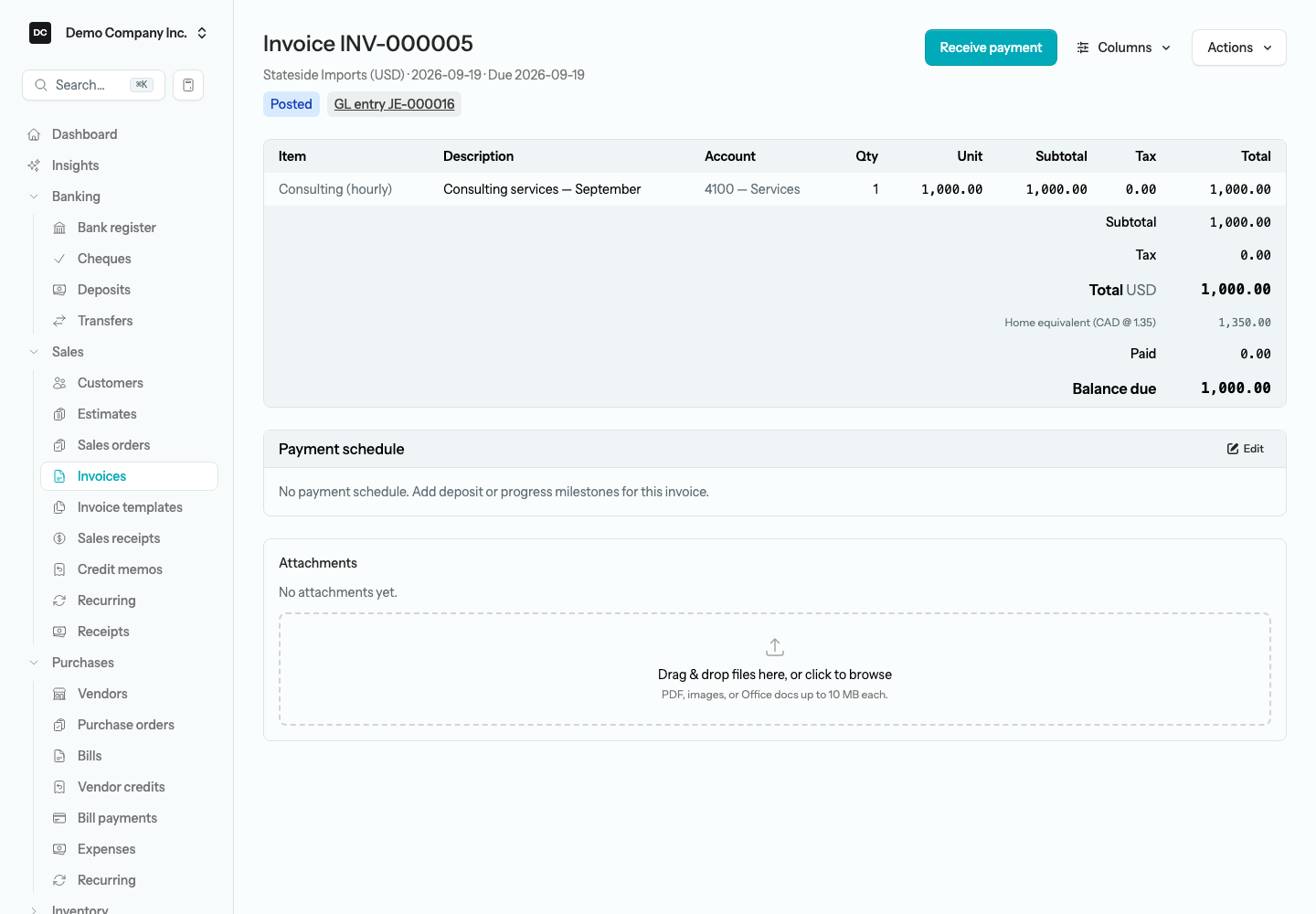
Note. A foreign invoice debits the receivable control account for that currency (in home amounts) and credits revenue, with sales tax broken out; a foreign bill credits the matching payable control account and debits the expense. A cheque or expense from a foreign account credits that account and debits the expense lines; a deposit into a foreign account debits it and credits each line’s source. Because each currency has its own control accounts, you can always see what is owed to and by you in each currency.
Note — Why a foreign entry may carry a rounding adjustment. Posting converts a foreign document to home cents in pieces. The receivable, payable, or bank side is converted from the document total, while the other side is converted one journal line at a time — one line per income or expense account (split further by class and location) plus one per sales-tax account — each rounded to the nearest cent on its own. Those separately rounded lines can add up to a little more or less than the converted total. The app moves the difference onto the largest line so the entry balances exactly — the general ledger only accepts entries whose debits and credits match to the penny. It is a rounding plug, not an error. It is usually a cent, but an entry with many lines can need a few cents, because each line can round by up to half a cent.
Note — Foreign receipts go straight to the bank. Undeposited Funds is a home-currency clearing account, so a deposit into a foreign bank account cannot batch receipts from it. When a foreign customer pays, choose the foreign bank account directly in Deposit to on the receipt instead of Undeposited Funds.
Tip. Every amount field on a foreign invoice or bill doubles as a quick calculator with + − × ÷. Start typing math — for example 1050+52.50 or 1000*1.35 — and a tape pops up showing each operation. Press Enter (or click away) to commit the final value into the field. You’ll find the same calculator on the money fields of most transaction forms — journal entries, cheques, deposits, transfers, payments, and the like — but not on every amount box in the app: some, such as a donation’s Amount or a customer’s opening Amount owed, take a plain number only.
Opening balances in a foreign currency
What a foreign customer or vendor already owed when you started using LineLedger is entered in their own currency. In the Opening Balances workspace, the row for a foreign contact carries a currency badge, you type the balance in that currency, and the footer totals everything as “Entered (home currency)”. The opening document locks its exchange rate exactly like a normal invoice or bill. See Opening balances.
Realized gains and losses
Exchange rates move between the day you book a foreign invoice or bill and the day it is paid. When you settle it at a different rate than it was booked at, the difference in home-currency terms is a realized exchange gain or loss, and the app posts it for you to the Exchange Gain or Loss account.
Note — How the gain or loss arises. Say you invoice Stateside Imports 1,000 USD when the rate is 1.35 — you book 1,350 CAD of receivable. They pay 1,000 USD when the rate is 1.30, worth 1,300 CAD. The app applies the payment, posts the 50 CAD shortfall to Exchange Gain or Loss as a loss, and clears the receivable to exactly zero. A favourable move produces a gain instead.
Paying a foreign vendor bill works the same way in reverse: the payable is cleared at each bill’s locked rate, the bank is credited at the payment-date rate, and the difference lands in Exchange Gain or Loss. A cross-currency transfer between two of your own accounts books its spread there too. A sales receipt never produces a gain or loss, because the sale and the cash settle at the same moment.
Note — Settling a foreign balance by cheque. A cheque line coded to a control account — Accounts Receivable (USD) when you refund a US customer’s credit balance, say — asks for the customer or vendor whose balance it settles, prefilled from the payee when the payee holds that role, and it carries no sales tax, because the balance already includes the tax the original invoice or bill recorded. The name is required when you post, not when you save a draft.
Period-end revaluation
Balances still open at period end — foreign bank and credit-card accounts, plus foreign AR and AP — are worth more or less in home currency as rates move, even though no payment has happened. Revaluation, also called the Home Currency Adjustment, restates those open balances at the closing rate so your period-end statements are accurate.
To run a revaluation:
- On Settings → Currencies, find the Period-end revaluation section.
- Set the As of date — the end of the period you are closing. It defaults to the last day of the current month.
- Select Run revaluation.
Note. Revaluation restates open foreign balances at the closing rate and posts the difference as an unrealized gain or loss to the Unrealized Gain or Loss account, in a journal entry titled “Home currency adjustment” for the As of date. A second entry dated the next day reverses it automatically, so the adjustment never compounds into the new period or double-counts with the realized gain or loss booked when the balance eventually settles. If every balance already matches the closing rates, nothing posts and the page tells you so. A given date can only be revalued once.
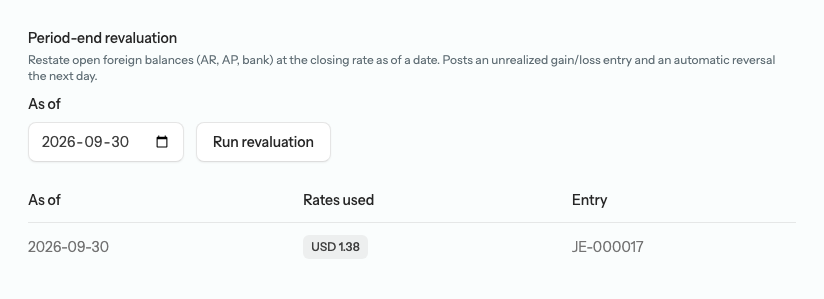
Each run is listed in the history table below the form: the As of date, the rates it used (one badge per currency), and the number of the entry it created. The closing rate for each currency is found the same way as any other rate — your latest manual rate on or before the As of date, otherwise the latest fetched rate on or before it — and the app asks for one only when it finds none. So a run for a date that hasn’t arrived yet (the default As of date, the last day of the current month, usually hasn’t) quietly uses the most recent rate on file, typically today’s, and an older manual rate beats a newer fetched one. Because a date can only be revalued once, wait until the period has ended, or enter the closing rate for the As of date under Exchange rates first, and check the Rates used badges afterward.
Related areas
- Settings → Currencies — enable currencies, manage rates, and run revaluation.
- Customers and Vendors — set the one currency each contact transacts in.
- Accounting — the Chart of Accounts, where foreign bank and credit-card accounts live.
- Banking — cross-currency transfers, deposits, and cheques.
- Opening balances — what foreign customers and vendors owed before you started.
- Reports — every report reads home amounts, and a report group can only combine organizations that share a home currency.