This page is for whoever runs the LineLedger server — the person who installed it with Docker or on a Laravel Forge host and who is on the hook when a release comes out. It stays at the level of what to run and why. Everyone else on the team can skip it: the pages under Settings cover what an organization Owner can do from inside the app.
There are two supported ways to run LineLedger. With Docker, one prebuilt image runs the web app, the queue worker, and the scheduler as three containers beside a MySQL database, and everything below assumes you are in the folder holding your docker-compose.yml and .env. On Laravel Forge (or any bare-metal Laravel host), the same commands run from the site directory with php artisan in front of them. The queue worker matters in both: organization backups, restores, recurring documents, reminders, and the emails LineLedger sends on an organization’s behalf — invoices, statements, invitations, portal sign-in links — are queued jobs, and without a worker they simply wait. Only the account emails (confirming an email address and resetting a password) and the operator alerts go out straight away — the failed-job and crashed-task alerts sent to OPS_ALERT_EMAIL, and the ledger-integrity, security, and exchange-rate alerts sent to LEDGER_INTEGRITY_ALERT_EMAIL, SECURITY_ALERT_EMAIL, and EXCHANGE_RATE_HEALTH_ALERT_EMAIL — so a failed job or a crashed scheduled task still gets reported. A worker that has simply stopped does not: its jobs wait without ever failing, and nothing sends an alert, so check now and then that the worker is running.
Heads up — The two values you can never lose. APP_KEY in your .env encrypts sessions, cookies, and the few secrets stored in the database — employees’ SINs and each user’s two-factor secret and recovery codes; PASSKEYS_USER_HANDLE_SECRET anchors every passkey your users have registered (left unset, it falls back to APP_KEY). Neither can be regenerated. Restore a database under a different APP_KEY and the books, contacts, documents, and user accounts all come back, but every employee SIN and two-factor secret is unrecoverable and everyone is signed out; a rotated passkey secret silently invalidates every passkey. Keep a copy of .env with every backup, and never rotate either value as part of an upgrade.
Where your data lives
Everything LineLedger knows is in three places, and a complete backup of an installation means all three:
- The database — every organization, its ledger, contacts, documents, users, and settings. On Docker this is the dbdata volume; on Forge it is the MySQL database you created for the site.
- The storage volume or directory — attachments, logos, in-app organization backups, proof artifacts, the installed payroll slip templates, and the OAuth keys the API uses. On Docker this is the storage volume; on Forge it is the storage/ folder under the site, unless you have pointed the attachment, logo, or backup roles at S3.
- The .env file — your configuration, including APP_KEY and PASSKEYS_USER_HANDLE_SECRET.
Heads up. On Docker, docker compose down -v deletes every named volume the stack declares in one go — the database (dbdata) and the storage volume, along with Caddy’s certificate store and the Redis and MinIO data if you use those. Nothing under a plain docker compose down or a container restart touches them, but treat -v as “erase the installation”. Backups written to BACKUP_DIR survive it because that is a folder on the host, not a volume.
Organization backups versus instance backups
LineLedger has two kinds of backup, and they answer different questions. An organization backup is a ZIP an Owner creates from Settings → Backup & Export inside the app. It holds every record scoped to that one organization — chart of accounts, transactions, attachments, settings, and API keys — and it is built by the queue worker, so it shows as Pending, then Running, then Ready, and each Download link works for one hour. Its purpose is portability: an Owner can upload it on any LineLedger server, using Restore from backup on the organization picker or the Restore from a backup option in the new-organization wizard, and get a brand-new organization with themselves as Owner. It is the right tool for moving one organization between servers or handing an accountant an archive.
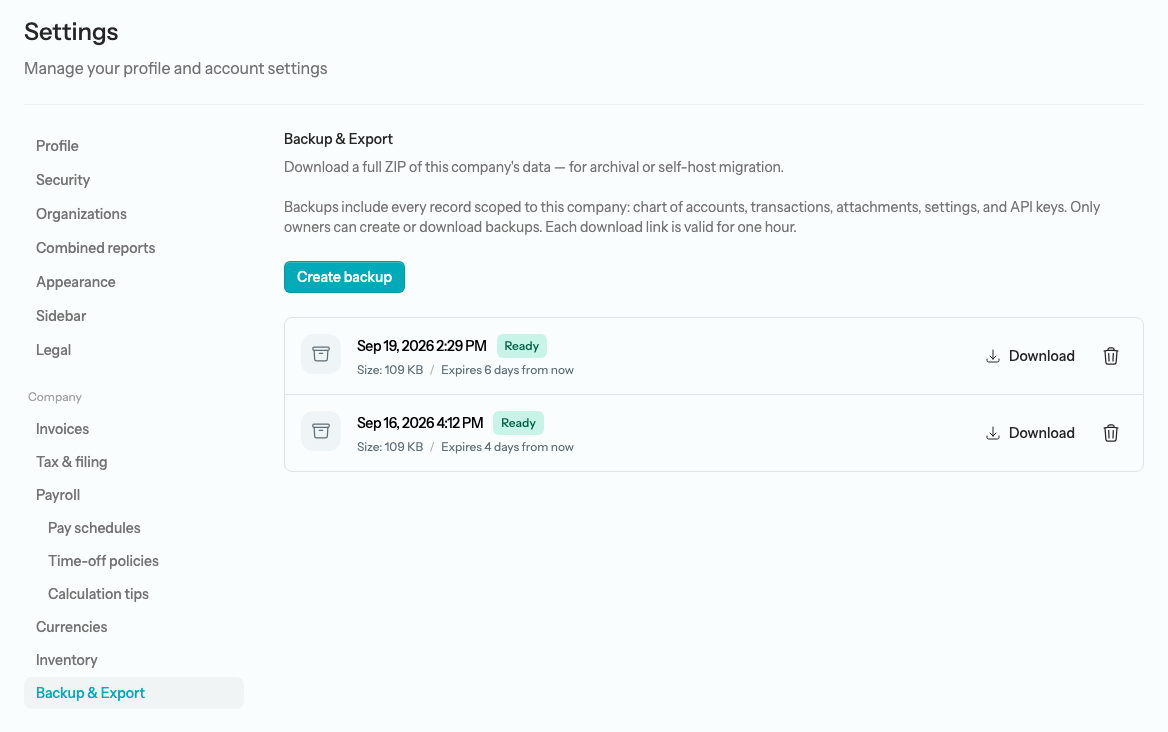
An instance backup is what this page is about: a database dump plus the storage volume plus .env, taken outside the app by the operator. It captures every organization at once, every user account, the audit-log triggers, and the site settings, and restoring it puts the whole server back exactly as it was. Organization backups cannot do that — they carry one organization’s records, not user accounts, passkeys, or site settings, and a restore matches users by email and attributes the rest to whoever restores — so keep taking instance backups even if every Owner downloads their own ZIPs. Organization backups land in the storage volume (or on BACKUP_DISK when you use S3), which is one more reason the storage archive belongs in every instance backup. See Settings → Backup & export for how an Owner creates one, and Create an organization for restoring one into a new organization.
Back up before you upgrade
A release can carry a database change that cannot be undone, and restoring a backup is the only supported way back. So the routine starts the same way every time: take an instance backup, confirm the files exist and have a sensible size, and only then upgrade.
Docker
backup.sh sits beside docker-compose.yml. Run it with the stack up:
./backup.shIt writes three timestamped files into ./backups (or BACKUP_DIR, if you set one in .env): a compressed database dump taken with the audit-log triggers included, a tarball of the storage volume, and a copy of .env. The database password never leaves the container — the dump runs inside MySQL — and the files are created readable by you alone. When it finishes it prints the exact restore.sh command that would load that backup, so keep the output. Copy the three files somewhere off the server: a backup beside the database is not a backup of the server.
Forge or bare metal
From the site directory, dump the database as the MySQL root user — the audit-log triggers carry a definer, and only a privileged user can restore them — then archive storage/ and copy .env:
mysqldump --single-transaction --triggers --routines -u root -p lineledger \
    | gzip > ~/lineledger-db-$(date +%Y%m%d).sql.gz
tar czf ~/lineledger-storage-$(date +%Y%m%d).tar.gz storage/
cp .env ~/lineledger-env-$(date +%Y%m%d) && chmod 600 ~/lineledger-env-$(date +%Y%m%d)
Note — Why —triggers matters. The audit log is protected by database triggers that block any edit or deletion of its rows. A dump taken without —triggers restores a ledger whose history can be changed, and nothing warns you: integrity:check does not look for the triggers, and its audit-chain check only reports a problem after a row has actually been altered. Always include them, and always restore as a user allowed to recreate them.
Upgrade
Every upgrade ends with the same command, php artisan app:upgrade. It is the one thing to run after pulling a release: it applies any pending database migrations, then runs the post-upgrade data steps that release ships (the backfills that bring older rows in line with new behaviour), in order, and stops at the first step that fails. Every step is safe to repeat — a second run finds nothing to migrate and nothing to backfill. Three options are worth knowing:
- —verify finishes with integrity:check, which proves the ledger still balances, the balance caches match the ledger, and the audit chain is intact. Run it after every upgrade and every restore.
- —dry-run lists the pending migrations and what each backfill would change, without writing anything. Use it to see what a release will do before you let it.
- —company= limits the backfills (and the check) to one organization, by its numeric ID or its slug, when you want to work through a large server one organization at a time.
Docker
To upgrade a Docker installation:
- Read the release’s notes (see Where to read what changed below) and fetch the release’s docker-compose.yml, backup.sh, and restore.sh if the notes say they changed.
- Run ./backup.sh and confirm the three files landed.
- In .env, pin the release: set LINELEDGER_VERSION to the exact version, for example LINELEDGER_VERSION=1.2.0. The line ships commented out, so uncomment it the first time.
- Pull the new image and recreate the containers. The app container runs app:upgrade on boot, and the queue and scheduler containers wait until the app is healthy, so the workers never run new code against the old database.
- Confirm and prove the books.
./backup.sh
# in .env:  LINELEDGER_VERSION=1.2.0
docker compose pull && docker compose up -d
docker compose logs -f app        # wait for "LineLedger ready (role: app)"
docker compose exec app php artisan app:upgrade --verify
Pinning matters. The image tag 1.2.0 is one exact release; 1.2 follows the newest patch on that line; latest follows the newest tagged release; and edge follows the development branch. With an exact pin, an upgrade happens when you change that line — not whenever a docker compose pull happens to run.
Tip — Run the upgrade step yourself. If you would rather see a dry run first, or keep the container boot short, set MIGRATE_ON_BOOT=false in .env before you bring the stack up. The app container then starts on the existing database without touching it and prints the command to run: docker compose exec app php artisan app:upgrade. Do it straight away — until you do, the site is serving new code against the old database schema.
Laravel Forge
To upgrade a Forge installation:
- Read the release’s notes and take the backup described above.
- Check, once, that your deploy script (Forge → Site → Deployment) calls php artisan app:upgrade where an older script called migrate —force, and that it still builds the front end with npm ci and npm run build and ends with queue:restart so the worker picks up the new code.
- If the release notes call for it on a large database, put the site into maintenance mode first with php artisan down.
- Select Deploy Now. The deploy script pulls the release, installs dependencies, builds assets, runs app:upgrade, refreshes the caches, and restarts the queue worker.
- From the site directory, run php artisan app:upgrade —verify (and php artisan up if you took the site down).
php artisan app:upgrade --verifyNote — What a good result looks like. app:upgrade ends with a summary table, one row per step — Migrations, each backfill, and Integrity check when you asked for it — with an outcome such as “Up to date.”, “Done; see the per-company lines above.”, or “Passed.”. It exits non-zero if any step fails, so you can put it at the end of a deploy script as a gate. A failed integrity check right after an upgrade is the moment to restore the backup you just took, not to keep going.
Heads up — Upgrading from 1.1.0 to 1.2.0. Take the backup first — it is the only way back. One of 1.2.0’s migrations moves Canadian organizations in British Columbia and Yukon that were left on US Pacific time onto America/Vancouver and America/Whitehorse, and it cannot be reversed. Another sets every existing organization’s document language to English. The release adds no new backfills, so app:upgrade runs the migrations and the same two backfills as 1.1.0; finish with app:upgrade —verify as usual. On a bare-metal host, check that PHP has the intl extension, which 1.2.0 requires, and that the server’s time-zone data is current enough to keep British Columbia on UTC−7 all year. UPGRADING.md lists the behaviour changes that are on by default.
Two housekeeping items are not part of app:upgrade. php artisan storage:check proves each file-storage role (attachments, logos, backups) can be written and read back, which is worth a run after any change to disks or S3 settings. And php artisan proof:generate rebuilds the public /verification page from the current code; nothing runs it for you, so add it to your deploy script or run it after each upgrade if you publish that page.
Roll back
A rollback is a restore of the backup you took before the upgrade, onto the previous release’s code. Re-pinning the old version on its own is not enough — that runs old code against a newer database — and you should never use migrate:rollback on a live ledger: its reverse steps drop columns and tables that now hold data, and some changes cannot be reversed at all. Anything entered after the backup was taken is lost either way, so decide quickly.
To roll back a Docker installation:
- Stop the application containers: docker compose stop app queue scheduler. MySQL stays up.
- In .env, set LINELEDGER_VERSION back to the version you were running. If .env itself changed since the backup, copy the saved lineledger-env-<timestamp> file back over it first — APP_KEY must match the dump.
- Run restore.sh with the database dump and the storage archive from the same backup run. It checks both archives are intact, asks you to type “restore” to confirm, drops and recreates the database, loads the dump as root so the audit-log triggers come back, empties and refills the storage volume, and brings the stack back up on the pinned version.
- Prove the books: run integrity:check (or app:upgrade —verify on a release that has it) and fix nothing until it passes.
docker compose stop app queue scheduler
# in .env:  LINELEDGER_VERSION=1.1.0
./restore.sh backups/lineledger-db-<ts>.sql.gz backups/lineledger-storage-<ts>.tar.gz
Passing only the database dump restores the database and leaves the storage volume alone, which is the right call when no files changed. restore.sh’s last step is app:upgrade —verify on whatever version you pinned; on a release too old to have that command it reports an error after the restore has already completed, and you run php artisan integrity:check instead.
To roll back a Forge installation:
- Put the site into maintenance mode with php artisan down, and stop the queue worker daemon.
- Deploy the previous release’s code (check out its tag or release branch and run your deploy script without the app:upgrade line, or point the site back at the branch you were on).
- Drop and recreate the database as root, then load the dump; restore the storage archive and, if it changed, the saved .env.
- Clear the caches (php artisan config:cache, route:cache, view:cache), restart the worker, run php artisan integrity:check, then php artisan up.
Tip. The upgrade notes for each release spell out the exact rollback for that version, including anything that differs from the general recipe above. Read them before you start, not after.
Keep nightly backups
A backup taken only when you remember to upgrade is not a backup plan. On Docker, the compose file ships an optional sidecar that dumps the database on a schedule:
docker compose --profile backup up -dIt writes lineledger-db-<timestamp>.sql.gz, triggers included, into BACKUP_DIR — by default ./backups, a folder on the host rather than a volume, so docker compose down -v cannot delete it — every BACKUP_INTERVAL_SECONDS (default 86400, once a day) and prunes dumps older than BACKUP_KEEP_DAYS (default 14). All three are set in .env, and backup.sh writes to the same folder, so on-demand and scheduled backups sit together. Two things it does not do: it dumps the database only — attachments and other uploads live in the storage volume, so run backup.sh for those, weekly at least — and it does not copy anything off the machine. Sync ./backups to another host or bucket; the folder holds financial data and a copy of .env, so keep it private.
Note. If you deploy from a git clone, the default ./backups lands inside the checkout. Both the sidecar and backup.sh drop a .gitignore there so git never lists the dumps, but an out-of-tree location such as BACKUP_DIR=/var/backups/lineledger is the better choice.
Scheduled dumps on Forge or bare metal
The mysqldump command under Back up before you upgrade asks for the root password, which works at a terminal but not on a schedule: cron and Forge’s Scheduled Jobs have no terminal to type it into, so the job fails. Cron also turns every unescaped percent sign in a crontab line into a line break, which breaks the date in the file name. For a nightly dump, keep the root credentials in a file only you can read, and put the command in a small script. First the credentials file, ~/.lineledger-backup.cnf:
[client]
user=root
password=your-mysql-root-password
Then the script, ~/lineledger-backup.sh:
#!/usr/bin/env bash
set -euo pipefail
umask 077
mkdir -p "$HOME/lineledger-backups"
out="$HOME/lineledger-backups/lineledger-db-$(date +%Y%m%d-%H%M%S).sql.gz"
mysqldump --defaults-extra-file="$HOME/.lineledger-backup.cnf" \
    --single-transaction --triggers --routines lineledger | gzip > "$out.part"
mv "$out.part" "$out"
find "$HOME/lineledger-backups" -name 'lineledger-db-*.sql.gz' -mtime +14 -delete
chmod 600 ~/.lineledger-backup.cnf
chmod 700 ~/lineledger-backup.sh
~/lineledger-backup.sh && ls -l ~/lineledger-backupsOnce running it by hand leaves a dump in ~/lineledger-backups, schedule the script by its full path — in Forge → Server → Scheduled Jobs as the same user, nightly, or with a crontab line such as 0 3 * * * /home/forge/lineledger-backup.sh. Like the Docker sidecar, it keeps —triggers in every dump and prunes dumps older than 14 days — and, also like the sidecar, it neither archives storage/ (run the tar command above for that, weekly at least) nor copies anything off the server, so sync ~/lineledger-backups to another host or bucket.
Every backup you cannot restore is a guess. Restore one onto a scratch machine or a second Docker project now and then, run php artisan integrity:check on the result, and you will know the day you need it that the routine works. Set OPS_ALERT_EMAIL in .env to your own inbox, too: the scheduler emails that address within the hour whenever a queued job fails, which is the usual reason an organization backup never reaches Ready.
Branding, region, and language
A handful of optional .env settings make an installation your own. All of them have safe defaults, and a change takes effect once the configuration is reloaded — recreate the containers on Docker, or redeploy on Forge.
- BRAND_LOGO replaces the mark on the sign-in, registration, and onboarding screens, and in the sidebar until an organization uploads its own logo. Any address the browser can fetch works: a file under public/, a /storage/… path (which survives a deploy), or a full URL. BRAND_LOGO_DARK is an optional variant for the dark theme. The name beside the logo, in the browser tab, and in outgoing email is APP_NAME.
- BRAND_FOOTER_OWNER is the name in the footer’s copyright line — whoever operates this installation.
- BRAND_SHOW_PROJECT_LINKS=false drops the version link and the AGPL-3.0, Source, and Legal links from the footer, leaving the copyright line and a plain version number. Read the note in config/brand.php first: the Source link is how the app offers its source code to the people using it, which section 13 of the AGPL-3.0 requires of anyone running a modified version as a network service. Hiding the link does not remove that obligation.
- SUPPORT_ENABLED=false removes Support from the account menus and turns off /support, for an installation whose support runs somewhere else. Tickets already raised are kept and stay readable under Site administration.
- APP_LOCALE sets the default language — en or fr — for anyone who has not picked one, and for documents of an organization or customer with no language set. It ships as en.
- APP_REGION (CA, US, or GB) picks which LineLedger marketing site the footer’s Legal link points to and, when files are on S3, which bucket region storage:check expects (ca-central-1 for CA, eu-west-2 for GB). Left blank it follows the host name: .ca is Canada, .uk is the United Kingdom, anything else the United States. It has nothing to do with the country of the organizations you host — any installation can hold Canadian, US, and UK organizations side by side.
- APP_URL_CA, APP_URL_US, APP_URL_GB, and the matching MARKETING_URL_ settings name the project’s own hosted sites. The country switcher shown to signed-out visitors only appears on those hosts, so on your own domain you never need to change them.
Languages for people and organizations are set inside the app; see Languages.
Which version am I running
The footer answers this from inside the app. At the bottom of the dashboard — and of every documentation page, the sign-in page, and the new-organization wizard — the footer reads the copyright line, then the version as v1.2.0, then AGPL-3.0, Source, and Legal. The version is a link: select it to open that release’s page on GitHub in a new tab. The number comes from the VERSION file shipped with the release itself, so it cannot drift from the code you deployed, and the same number is stamped into every organization backup — the Restore from backup screen shows it as the Bundle app version and warns of an App version mismatch when the ZIP came from a different release.
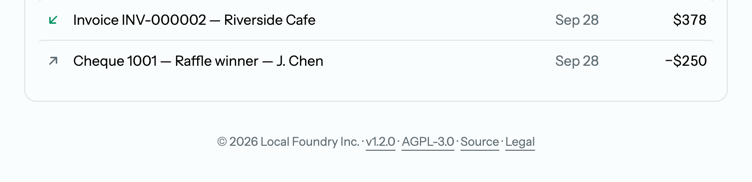
From the server, docker compose exec app cat VERSION (or cat VERSION in the site directory) prints the same number, and php artisan app:upgrade —dry-run tells you whether the database has caught up with it — “Up to date” under Migrations means it has.
Where to read what changed
Two files in the repository travel with every release, and reading both before an upgrade is the whole of the homework:
- CHANGELOG.md — the release notes: what was added, changed, and fixed in each version, newest first. The footer’s version link opens that release’s page on GitHub rather than this file.
- UPGRADING.md — the operator’s guide: one section per release listing what you have to do about it. Each section says how to back up first, gives the Docker and Forge steps, explains what the migrations and backfills touch, lists behaviour changes that are on by default, and spells out the rollback for that version.
Heads up — One release at a time. Go 1.0.0 → 1.1.0 → 1.2.0, running each release’s steps in turn. Skipping a release skips its behaviour notes and the checks its section asks you to make, and leaves you upgrading two releases’ worth of database changes with one backup to fall back on.
The README in the same repository is the installation and operations manual: environment variables, the scheduler, HTTPS and reverse-proxy setup, object storage, and the annual payroll-table refresh that must land before the first January pay run. The in-app documentation you are reading now stays at the user level on purpose.
Related pages
- Site administration — the /admin portal for site admins: users, organizations, support tickets, maintenance mode, and whether registration stays open. The first person to register on the server becomes a site admin automatically, and any site admin can make other users admins (or revoke them) from Users.
- Settings — Backup & Export, where an Owner creates a per-organization ZIP.
- Create an organization — the Restore from a backup path that turns an organization ZIP into a new organization on this server.