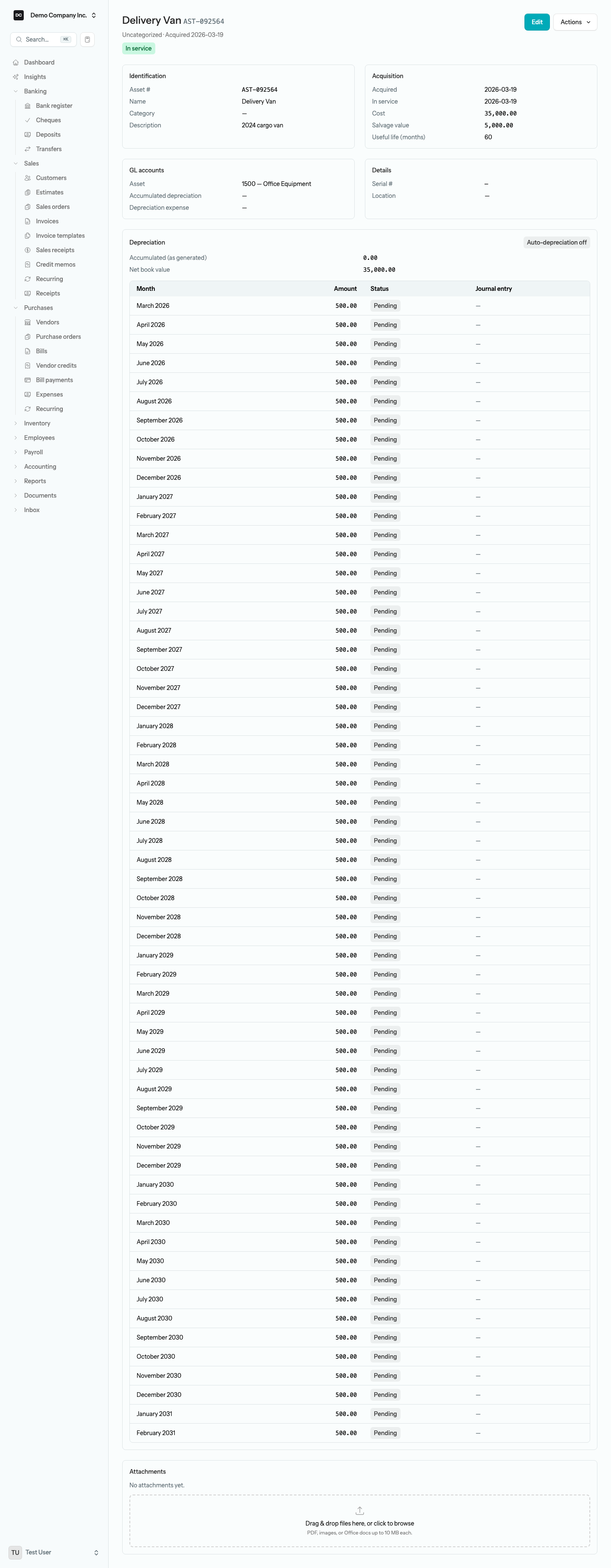
The Fixed assets register is where you record the long-lived things your business owns — equipment, vehicles, furniture, buildings. Each record keeps the cost, the in-service date, the depreciation details, and the accounts the asset uses, all in one place and separate from your day-to-day expenses. Once an asset is set up, LineLedger can draft its monthly depreciation for you. The examples below use our sample business, Demo Company Inc., and its Delivery Van.
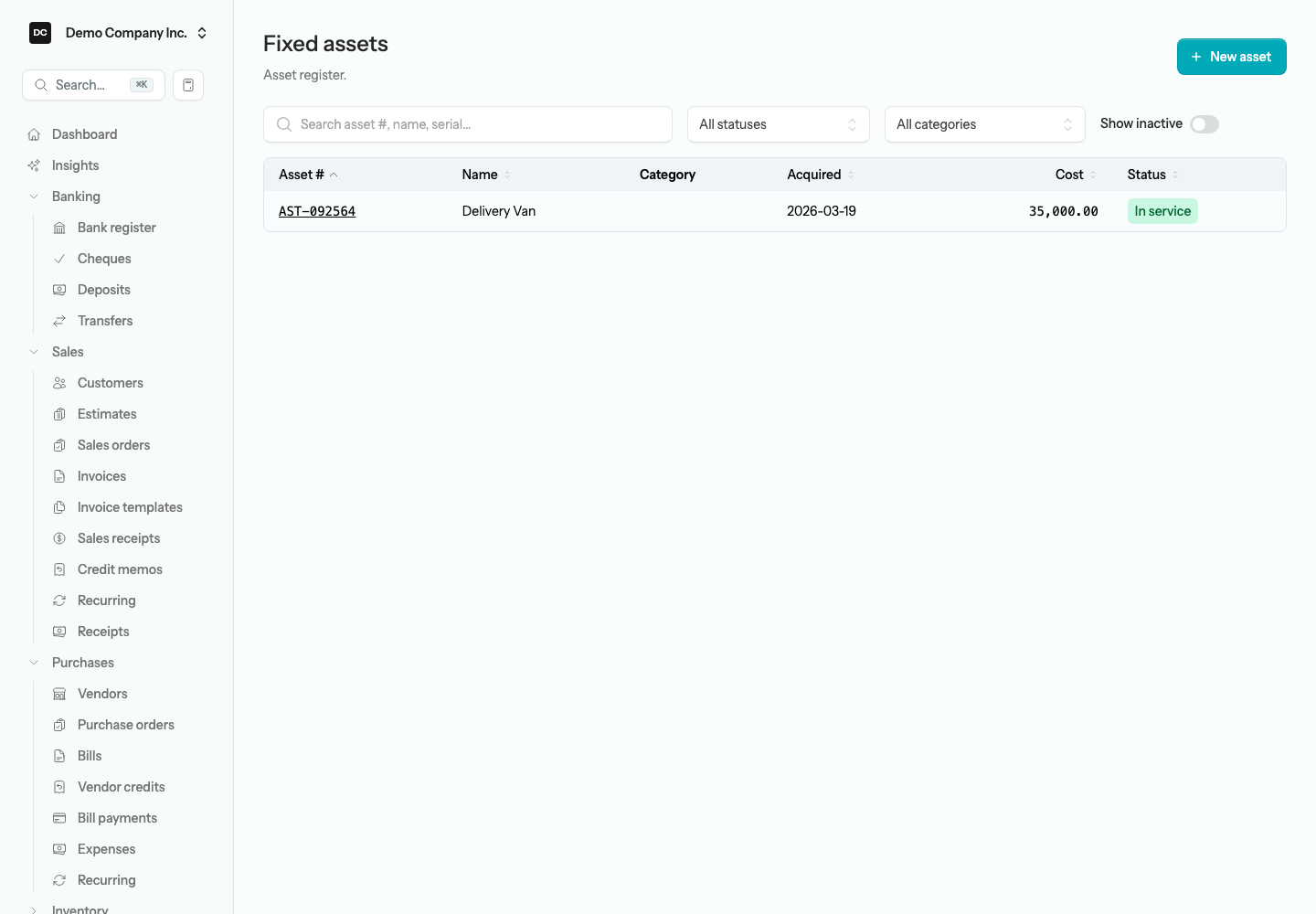
Open Fixed assets from the sidebar, under Accounting, to see the register. Each row shows the asset number, name, category, the date you acquired it, its cost, and its status. Select any column heading except Category to sort by it — select it again to flip the order — and the list shows 25 assets per page.
Note. The Fixed assets entry appears in the sidebar only while the Fixed assets feature is switched on for your organization — several industry presets start with it off. To turn it on, open Settings → Organizations, select your organization, flip Fixed assets in the Features section, and Save. Turning it off later only hides the register; it never deletes your assets. See Settings → Feature toggles.
Record an asset
Add an asset when you buy something that will serve the business for more than a year. You record it once; the register then holds its details and the accounts it depreciates against.
To record an asset:
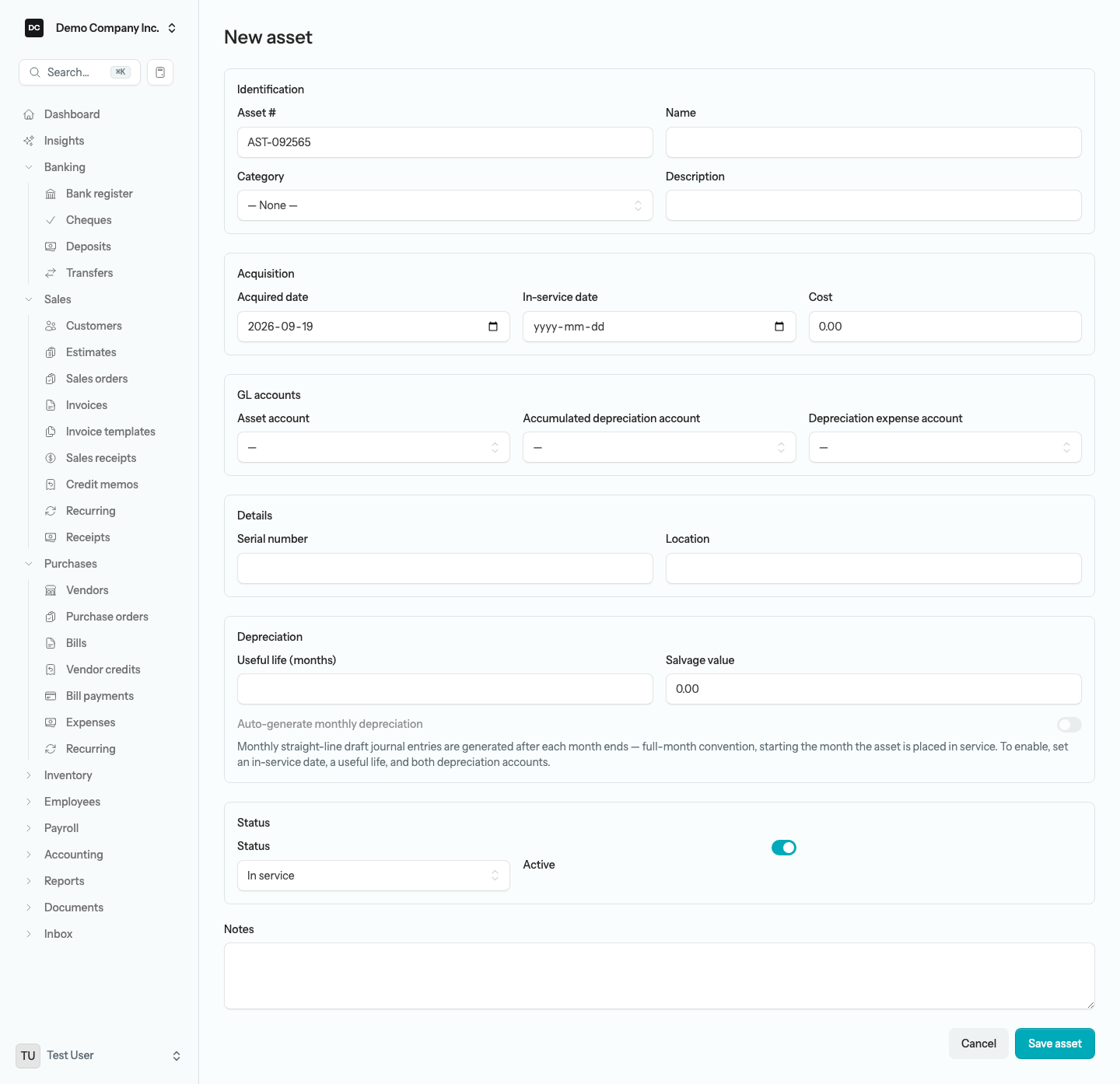
- Open Fixed assets from the sidebar and select New asset.
- Under Identification, enter a Name (for example, Delivery Van). The Asset # fills in automatically — you can type your own, but each number can be used only once in the organization. Optionally choose a Category and add a Description.
- Under Acquisition, set the Acquired date (it defaults to today — a click anywhere in a date field opens the calendar), the In-service date, and the Cost.
- Under GL accounts, choose the Asset account and, if you plan to depreciate, the Accumulated depreciation account and Depreciation expense account. The first two pickers list only fixed-asset accounts — the standard chart’s 1510 Accumulated Depreciation is one — and the third lists every active expense account.
- Under Details, add a Serial number and Location if you want to track them.
- Under Depreciation, enter the Useful life (months) and the Salvage value, then optionally turn on Auto-generate monthly depreciation (see below).
- Under Status, leave the asset In service for now; you set this to Disposed, Sold, or Lost later when you retire it. The Active switch beside it is the same one that Archive turns off.
- Add any Notes for your own reference, then select Save asset.
Tip. Choose a Category and LineLedger fills in the three accounts and a default useful life for you, so every vehicle or every computer is booked consistently. It only fills fields that are still empty, so anything you typed first stays put, and you can still override any field on the individual asset. Categories are set up under Settings → Lists → Asset categories — see Capital cost allowance below for the CCA class they can carry.
Create an asset from a purchase
When you buy an asset, you usually record the purchase first — as a bill, a cheque, or a journal entry — and code the line to a fixed-asset account. LineLedger can turn that line straight into an asset record so you do not retype the details.
To create an asset from a purchase:
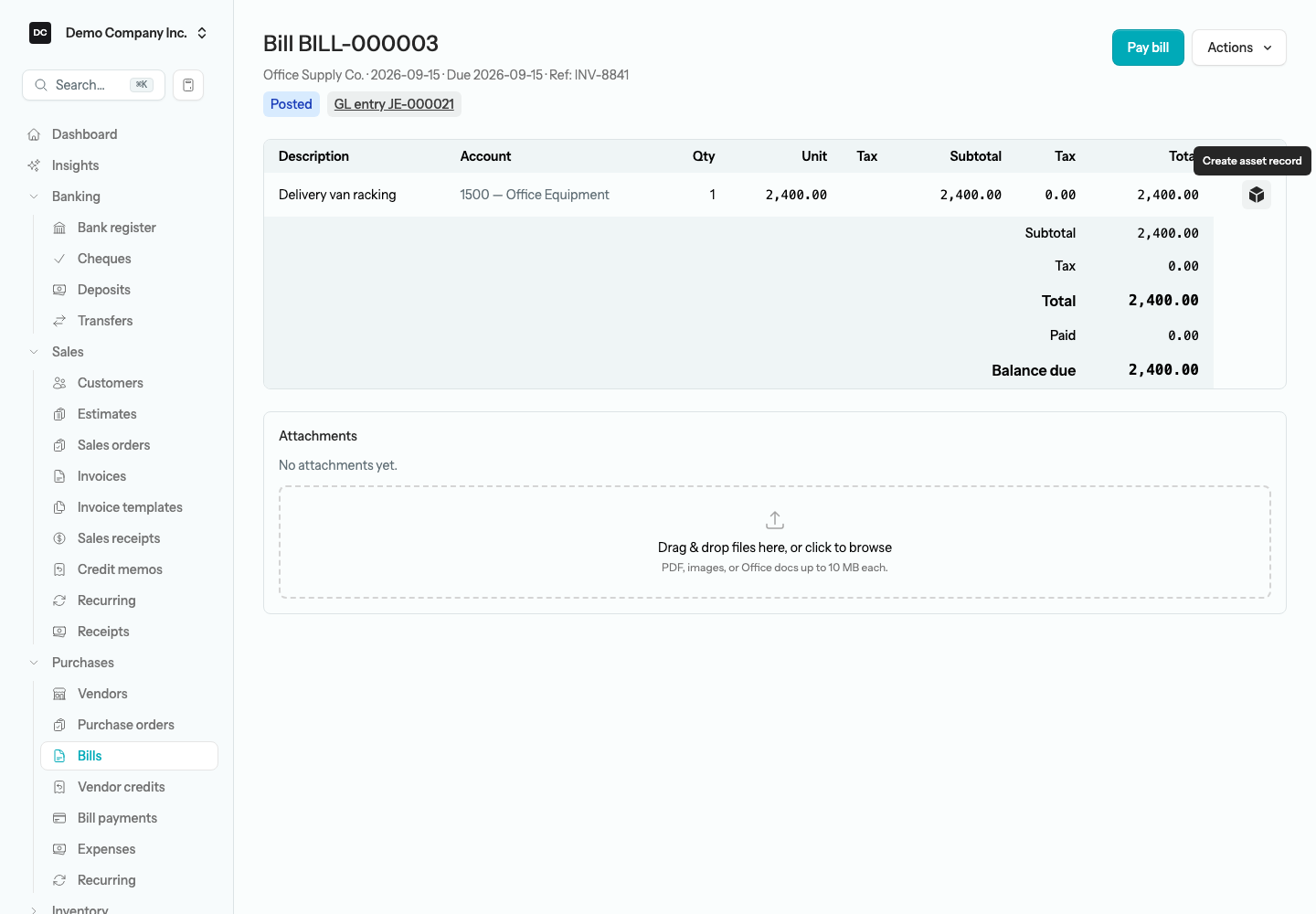
- Open the bill, cheque (labelled Check for a US organization), or journal entry whose line is coded to a fixed-asset account.
- At the end of that line, select the cube button — its tooltip reads Create asset record. On a bill or cheque the button shows on every fixed-asset line; on a journal entry it shows only on a debit line, because a credit to a fixed-asset account is a disposal, not a purchase.
- The New asset form opens with the Name and Description taken from the line (or from the vendor reference or payee name when the line has no description), the Asset account, the Acquired date set to the document’s date, and the Cost set to the line amount before tax. Add the depreciation details and select Save asset.
Note. An asset created this way keeps a Source link back to the bill, cheque, or journal entry it came from, so you can always trace the asset to the transaction that paid for it. The link shows on both the asset’s detail page and its edit form.
Load an existing asset register
If you are moving to LineLedger with assets you already own, you do not have to key each one in. An Owner can load the whole register — cost and accumulated depreciation to date, one asset per row — from a CSV file in the Opening balances workspace. It is the same importer the QuickBooks migration wizard uses, run on its own, so it also works for an organization that was created without an import and needs its history backfilled.
To import your asset register:
- Open Accounting → Opening balances (the sidebar entry shows for Owners only) and check the As of date — the conversion date your balances carry over on, usually your last year-end in the old system.
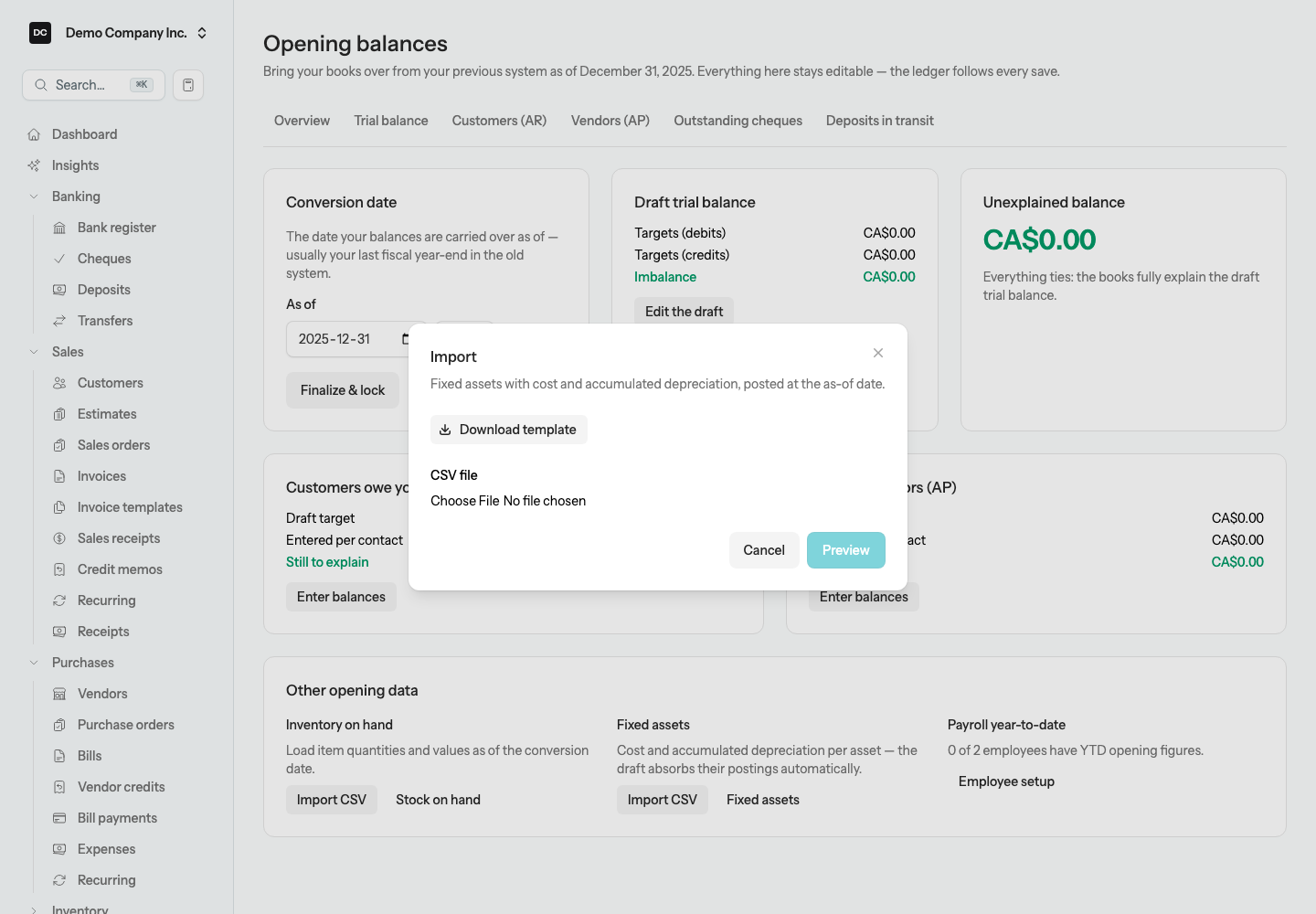
- In the Other opening data card, find the Fixed assets tile and select Import CSV.
- Select Download template and fill it in. asset_no, name, asset_account_code, and acquired_date are required, and cost must be greater than zero. The rest are optional: category_name, accum_depreciation_account_code, depreciation_expense_account_code, in_service_date, salvage_value, useful_life_months, accumulated_depreciation_to_date, serial_number, location, and description. A row that carries accumulated depreciation must also name its accum_depreciation_account_code.
- Choose the CSV file and select Preview. The dialog lists the rows it will create and flags any problems by row number; fix them in the file and preview again.
- Select Import.
Note — What the import does to your books. Each row becomes an asset record, In service and with its category created by name if it does not exist yet (the row’s accounts and useful life become that category’s defaults). The import then posts one journal entry dated the As of date: it debits each asset account for the cost, credits the accumulated depreciation account for the depreciation to date, and credits Opening Balance Equity for the net book value. The opening entry the workspace maintains absorbs those postings, so your draft trial balance still lands on its targets.
Heads up — Imported depreciation shows on the balance sheet, not on the asset card. The Balance Sheet carries an imported asset at its correct net book value. The asset’s own Depreciation card, however, counts only depreciation entries LineLedger generated and you posted, so an imported asset shows Accumulated (as generated) 0.00 and a Net book value equal to its full cost. Before you turn on automatic depreciation for an imported asset, select Finalize & lock on the Opening balances page (or set a closing date at the conversion date): months ending on or before that date are then marked Locked and skipped, and LineLedger drafts only the months after your conversion. Without a lock it would draft every month back to the In-service date — depreciation the import has already recorded. Import CSV is unavailable while the workspace is finalized; select Un-finalize to load more.
The rest of the workspace — trial balance targets, customer and vendor balances, outstanding cheques and deposits — is described under Opening balances, and a full QuickBooks conversion under Migration.
Review an asset
Open any asset to see everything on one page: its identification, acquisition cost and dates, the three GL accounts, its serial and location details, the depreciation schedule (once a useful life is set), a Disposal section (once it is retired), your Notes, and any files you have attached. Attach the purchase invoice or warranty documents here to keep the paper trail with the record — PDF, images, or Office docs up to 10 MB each. Select Edit to change any of it.
Note — One person edits a record at a time. If a teammate already has an asset open for editing, you see who is editing instead of the form, and Archive, Restore, and Delete are refused until they are done. Owners and Admins can take over. See Settings → Edit locks for how a lock is held and released.
Automatic depreciation
LineLedger can keep an asset depreciating on its own using the straight-line method: it spreads the depreciable base — the cost minus the salvage value — evenly across the useful life you entered. It follows a full-month convention: month one is the calendar month that contains the In-service date, with no proration by day, so an asset placed in service on the 28th still takes a whole month. Each night, LineLedger looks for months that have fully ended and drafts the depreciation entry for you, so you no longer have to remember it.
To turn on automatic depreciation:
- Open the asset and select Edit.
- Make sure the In-service date, the Useful life (months), the Accumulated depreciation account, and the Depreciation expense account are all set — the switch stays greyed out until all four are, and the note under it lists those same four prerequisites as a reminder (it does not say which one is still missing, so check each field yourself).
- Under Depreciation, turn on Auto-generate monthly depreciation.
- Select Save asset.
Once a useful life is set, the asset’s detail page shows a Depreciation card — badged “Auto-depreciation on” or “Auto-depreciation off” — with Accumulated (as generated), the current Net book value, and a month-by-month schedule. Each row in the schedule carries a status:
- Pending — a future month, or one whose draft has not been generated yet.
- Draft — LineLedger has generated the journal entry; review and post it to record the depreciation.
- Posted — the entry is posted; this month now counts toward accumulated depreciation and net book value.
- Voided — you voided the entry; that month is left as recorded and is not regenerated.
- Locked — record manually — the month ends inside a closed period, so LineLedger will not touch it. Record it by hand instead.
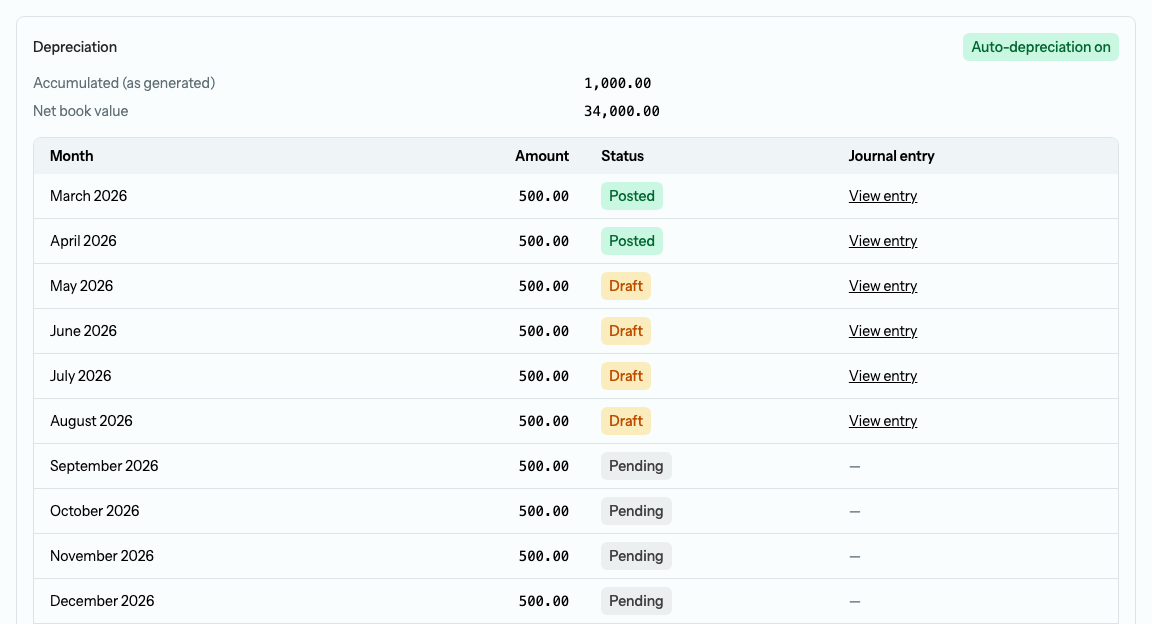
Note — What automatic depreciation does to your books. LineLedger never posts depreciation behind your back. It creates one draft journal entry per month that debits the depreciation expense account and credits the accumulated depreciation account for the month’s amount — bundling every due asset onto the same entry, each line memoed with the asset’s number and name. Nothing reaches your reports until you open that draft and post it. Until then, the asset’s accumulated total and net book value reflect only the months you have already posted.
Tip. Find the drafts under Accounting → Journal — each is dated the last day of the month and memoed “Monthly depreciation —” followed by the month, for example “Monthly depreciation — August 2026.” Open one, select Edit to check the amounts, then select Post entry. If you void a posted entry, the month stays Voided and is never regenerated. A draft journal entry has no Delete action in the app; if one is deleted through the API, LineLedger drafts its months again the next night.
Note — When a month is skipped. Retiring an asset stops its depreciation from the disposal month onward, and archiving one pauses it altogether until you restore it. A month whose share rounds to 0.00 is skipped — the final month still brings the schedule to the exact depreciable base. Catch-up for a backdated In-service date is capped at 60 months per asset per nightly run, so a long backlog fills in over a few nights. On a self-hosted install the nightly run depends on the scheduler — see Self-hosting.
Record depreciation manually
If you would rather not use automatic depreciation — or you need to cover a locked month, or you follow a method other than straight-line — record depreciation yourself with a journal entry on whatever schedule your accountant follows.
To record depreciation by hand:
- Open Accounting → Journal and select New entry.
- Debit the depreciation-expense account for the period’s depreciation.
- Credit the accumulated-depreciation account for the same amount.
- Post the entry.
Tip. Because manual depreciation usually repeats every month for the same amount, you can save it as a schedule under Accounting → Recurring entries so you do not have to rewrite it. A schedule never posts on its own: on each due date it creates a draft journal entry, and you still open that draft and post it. Keeping the three accounts on the asset record makes the entry quick to fill in. See Accounting → Recurring (memorized) journal entries.
Capital cost allowance (Canada)
Book depreciation is what you record above. Capital cost allowance (CCA) is the deduction the CRA allows instead, calculated by class at a fixed rate. For a Canadian organization, LineLedger links the two through asset categories: each category can carry a CCA class, and the T2125 report reads your register to fill in the year’s additions for each class.
To set up CCA classes:
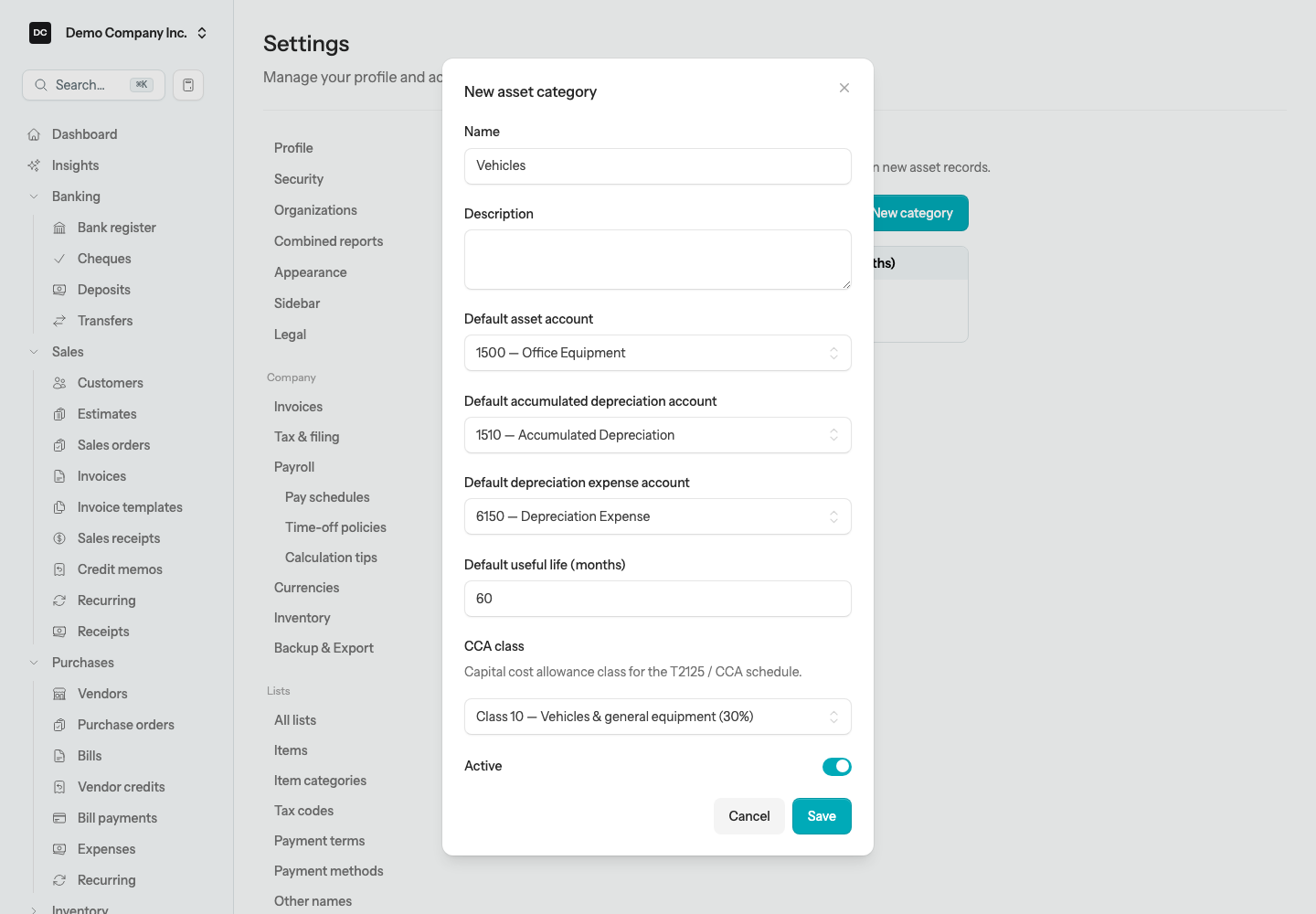
- Open Settings → Lists → Asset categories and select New category (or the pencil on an existing one).
- Enter a Name, set the Default asset account, Default accumulated depreciation account, Default depreciation expense account, and Default useful life (months), then choose a CCA class — for example Class 10 — Vehicles & general equipment (30%) for a Vehicles category that holds the Delivery Van. The CCA class field appears only for a Canadian organization.
- Select Save, then put each asset in its category.
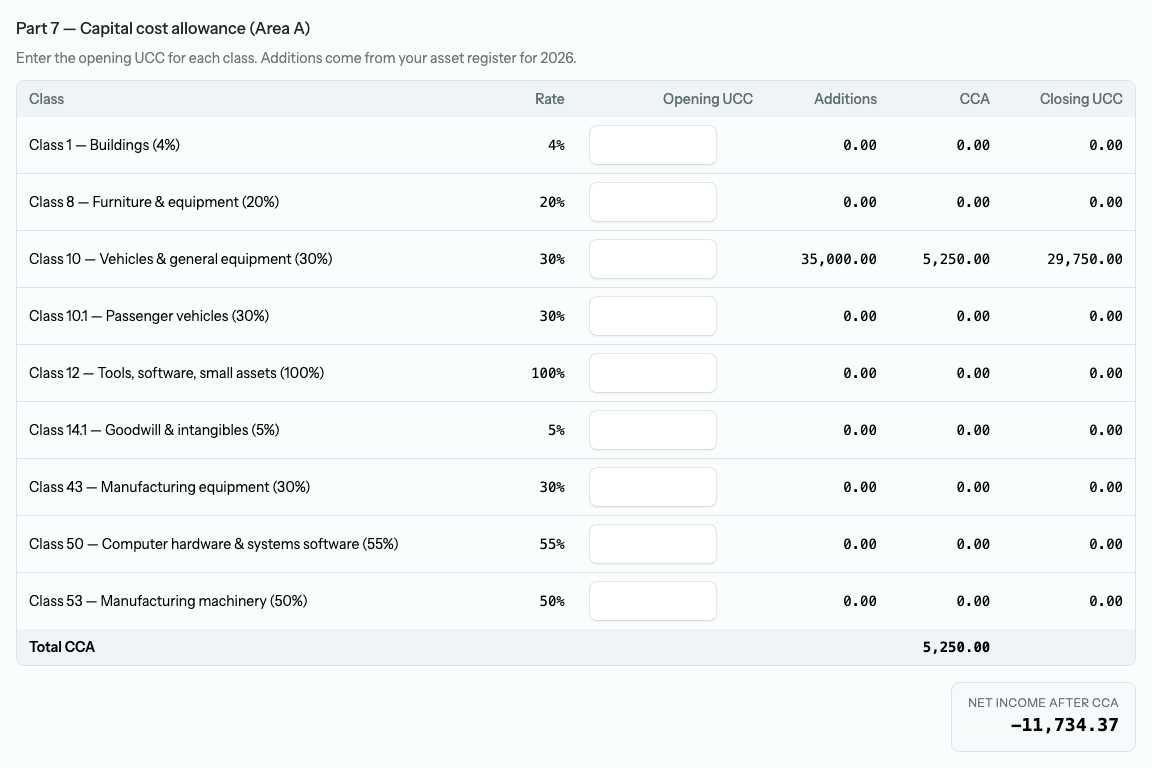
On the T2125 report — Reports → All Reports, in the Accountant & Taxes group as T2125 Business Activities, offered only to a sole proprietorship — Part 7 — Capital cost allowance (Area A) lists every class with its rate. Enter the Opening UCC for each class by hand; the Additions column comes from your register, and the heading tells you which year it is reading.
Note — Which assets count as additions. An asset lands in a class only when all three are true: it has a Category, that category has a CCA class, and its In-service date falls inside the tax year. The addition is the asset’s full Cost — not its net book value, and salvage value is ignored. An asset with no category, or one whose category has no class, never reaches the schedule, so check both before you rely on the number.
Dispose of an asset
When an asset is sold, scrapped, or lost, mark it so on the record. Open the asset, select Edit, and in the Status section choose Disposed, Sold, or Lost. A Disposal date appears — it is required — along with a Disposal notes field. Save the asset and its detail page shows a Disposal section. The record stays in the register for history.
Note. Changing the status does not move money, and it stops automatic depreciation from the disposal month onward. Book any gain or loss and remove the asset and its accumulated depreciation from the balance sheet with a journal entry dated at the disposal — credit the asset account, debit accumulated depreciation, record the proceeds, and post the difference to a gain or loss account.
Archive or delete an asset
Use the Actions menu on an asset’s detail page to Archive it, or turn off the Active switch on its edit form — the two do the same thing. An archived asset drops out of the register unless you turn on “Show inactive,” and LineLedger stops drafting its depreciation while it is archived, but its history stays intact, which is the right choice for an asset you no longer track. Restore brings it back and resumes any months still uncovered. Delete takes the asset out of the app for good — it no longer appears in the register, even with “Show inactive” on, and the app warns that it cannot be undone through the UI — so reach for it only when you created an asset by mistake. A deleted asset’s Asset # stays taken, and saving another asset with that number fails, so give any replacement a new number.
Related areas
- Accounting → Journal — review and post the drafted depreciation entries, and record disposal entries.
- Accounting → Recurring entries — schedule a manual depreciation entry so a draft is ready to review and post every month.
- Accounting → Opening balances (Owners) — load an existing register with cost and accumulated depreciation from CSV; see Opening balances.
- Settings → Lists → Asset categories — set default accounts, a default useful life, and (for a Canadian organization) a CCA class so new assets fill in consistently; see Lists.
- Purchases → Bills and Banking → Cheques — record the purchase, then use the “Create asset record” button to turn the fixed-asset line into an asset.
- Settings → Organizations — the Fixed assets feature toggle; see Settings.
- API — assets and asset categories are available at /api/v1/assets and /api/v1/asset-categories, and answer 423 while someone is editing the record in the app; see API.
Reports tied to this area
- Balance Sheet — your fixed-asset accounts and accumulated depreciation as of a date, which together give the net book value on the statement.
- General Ledger — every posted depreciation and disposal entry, account by account, with running balances.
- T2125 Business Activities — the capital cost allowance schedule, with additions read from the asset register (Canadian sole proprietors).
All of these are described under Reports.