The customer portal is a public, customer-facing page for your organization, separate from the staff app. Your customers use it to see their account statement, open the invoices you email them, view PDFs, and — once you turn on online payments — pay you by card. It lives at a /pay address for your organization and needs no staff account. The portal is deliberately plain: your logo (or your brand name if you have not uploaded one), the signed-in customer’s name, a Sign out button, and nothing else to get lost in. The examples below use our sample business, Demo Company Inc.
Employees have a portal of their own, at a separate /my-pay address, for pay stubs and tax slips. Everything below is about customers.
How a customer signs in
Sign-in is passwordless. There are no passwords for your customers to manage or for you to reset — they get a one-time link by email each time. Most customers never sign in on purpose: every invoice, payment reminder, and statement you email carries its own one-time link that signs them in and drops them straight onto that document. The portal’s own address is your LineLedger address followed by /pay/ and your organization’s slug — for Demo Company Inc. that is /pay/demo. The app does not print that address on invoices, so add it to your invoice footer or email signature if you want customers to bookmark it.
To sign in to the portal directly:
- The customer opens your portal address and lands on the “View & pay your invoices” screen.
- They enter their Email address and select Send sign-in link.
- If the address matches an active customer record with that email on file, the app sends a “Sign in to Demo Company Inc.” email with a View my invoices button.
- They open the link to sign in. It works once and expires 15 minutes after it was sent.
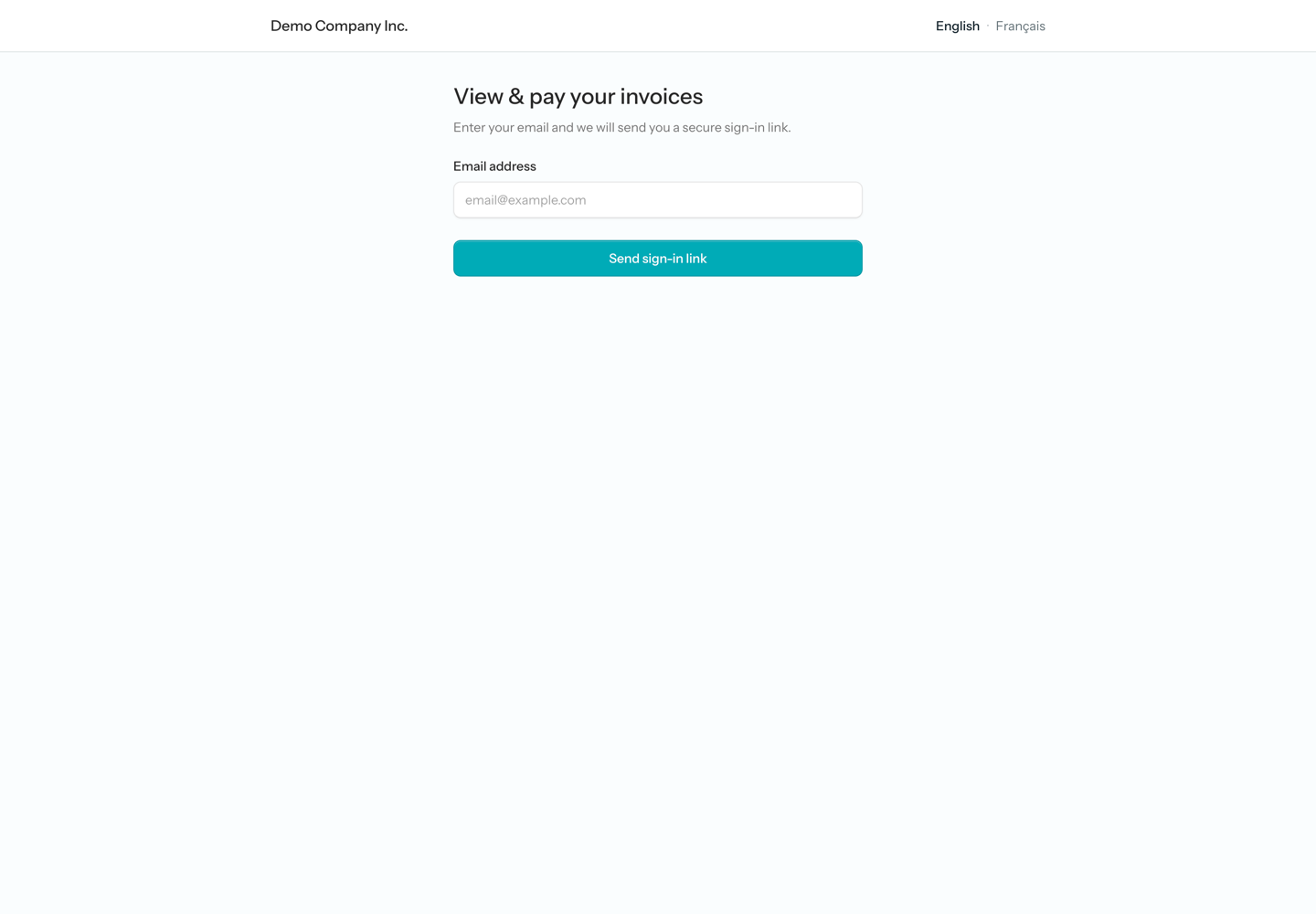
Note. The screen always answers “If an account exists for that address, we just sent a sign-in link” — whether or not the email matched — so nobody can use the form to find out who your customers are. Requests are rate-limited too: after five for the same address, the form asks the customer to wait before trying again. Customer sessions are entirely separate from your staff logins, and a customer you mark inactive can no longer request a sign-in link.
The portal opens in the customer’s document language, and an English · Français switcher on every portal page lets them change it — see Languages.
The links customers receive
Three staff-side actions email a customer a one-click portal link. Each link is minted fresh for that send, works once, and expires after 15 minutes — after that, the customer simply signs in from the portal address instead.
- Send to client on an invoice — the email’s View & pay invoice button opens that invoice in the portal. Everyone on the send receives the identical email, button and PDF included: the To address, anyone in CC or BCC, and you if CC my business email is ticked. The button is one link for the whole send, so whoever opens it first signs in as the customer and uses it up — copy only people you are happy to have in that customer’s portal.
- Payment reminders — the automated morning run and the Reminders worklist’s Send now button both email the same View & pay invoice link. The automated run only writes to customers with Send payment reminders switched on.
- Statement… on the Customers list — the email attaches the statement PDF, and its View statement online button lands the customer on their live portal statement.
A recurring schedule that posts and emails invoices only emails customers with Email invoices to this customer switched on; a person selecting Send always gets through. Sending invoices, reminders, and statements is covered on the Customers page.
What customers can do
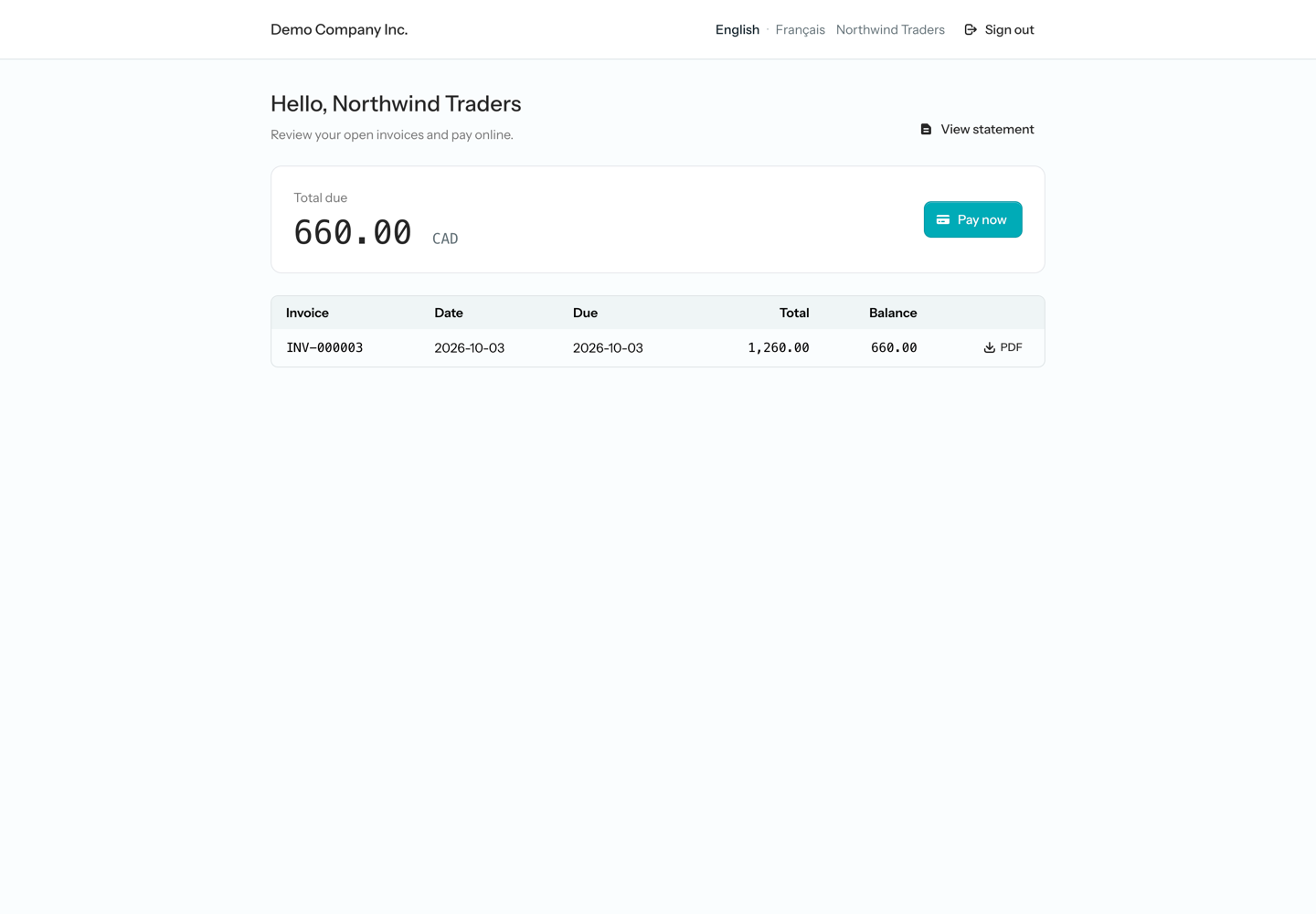
After signing in, the customer lands on a dashboard headed “Hello,” and their name. It shows their Total due — the sum of every open invoice — a Pay now button whenever that total is above zero, a View statement button, and a table of their open invoices with the Invoice number, Date, Due, Total, and Balance of each, plus a PDF button on every row. Invoices paid in full drop off the list, and a customer who owes nothing sees “You have no open invoices. Thank you!”
- See every open invoice with its balance, and open any of their invoice PDFs.
- View their account statement over a date range and download it as a PDF.
- Open an invoice’s own page — line items, totals, payment schedule, and payment instructions — from the link in the email you sent them.
- Pay their whole outstanding balance online by card, when online payments are turned on.
The statement
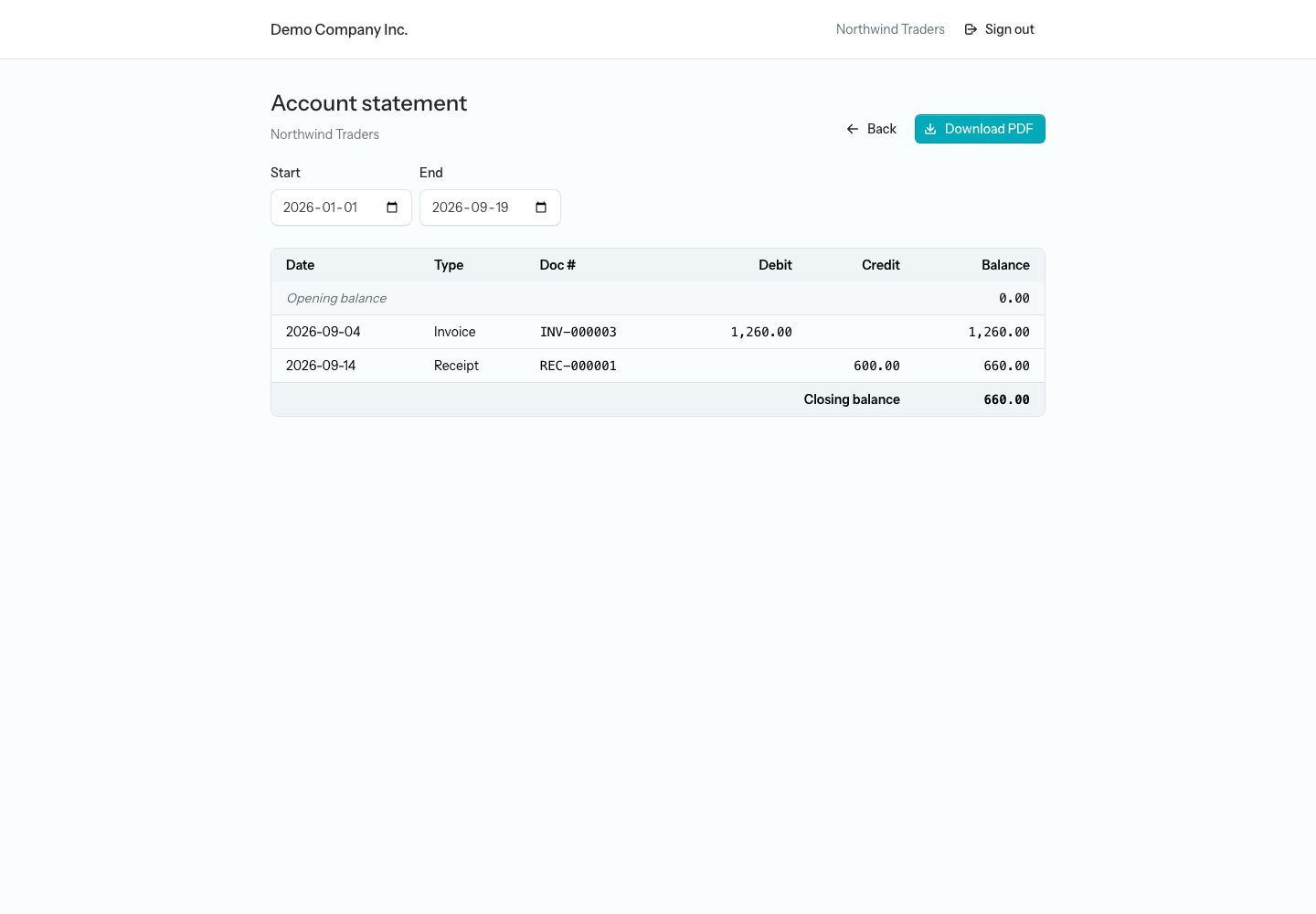
View statement opens the Account statement: every invoice, credit memo, and payment on the customer’s account in date order, with the Opening balance at the top, a running Balance on each row, and the Closing balance at the bottom. It is built by the same engine as the Contact statement your staff run under Reports, so the figures always agree. The on-screen table is trimmed: it shows Date, Type, Doc #, Debit, Credit, and Balance, and leaves out the Rep and Memo columns of the staff report. The range starts on 1 January of the current year and ends today; the customer changes the Start and End dates (a click anywhere in either field opens the calendar) and the table refreshes as they do. Download PDF saves the same date range as a PDF, and Back returns to the dashboard.
Heads up — The downloaded PDF shows your memos. Download PDF does not copy the on-screen table. It uses the staff Contact statement’s PDF layout: it adds a Memo column, labels the running column Running, and adds a Period totals row above the Closing balance. Only the Rep column is left out. The memo is each entry’s posting memo. For invoices and receipts that is an automatic line such as “Invoice INV-000003 — Northwind Traders”, but a journal entry you post against the customer shows its memo exactly as you typed it. Write those memos on the assumption that the customer will read them.
Sending a customer their statement
You do not have to wait for customers to look. Select Statement… on a customer’s row in the Customers list (or click their Open balance) to open their Customer statement page, choose Open invoices or Account activity, the period and the columns, then select Email… and Send. The email carries the PDF exactly as previewed plus a View statement online button that signs the customer straight into the portal statement above — the live, running-balance view, whichever PDF style you attached. The statement page is described in full on the Customers page.
Opening an invoice
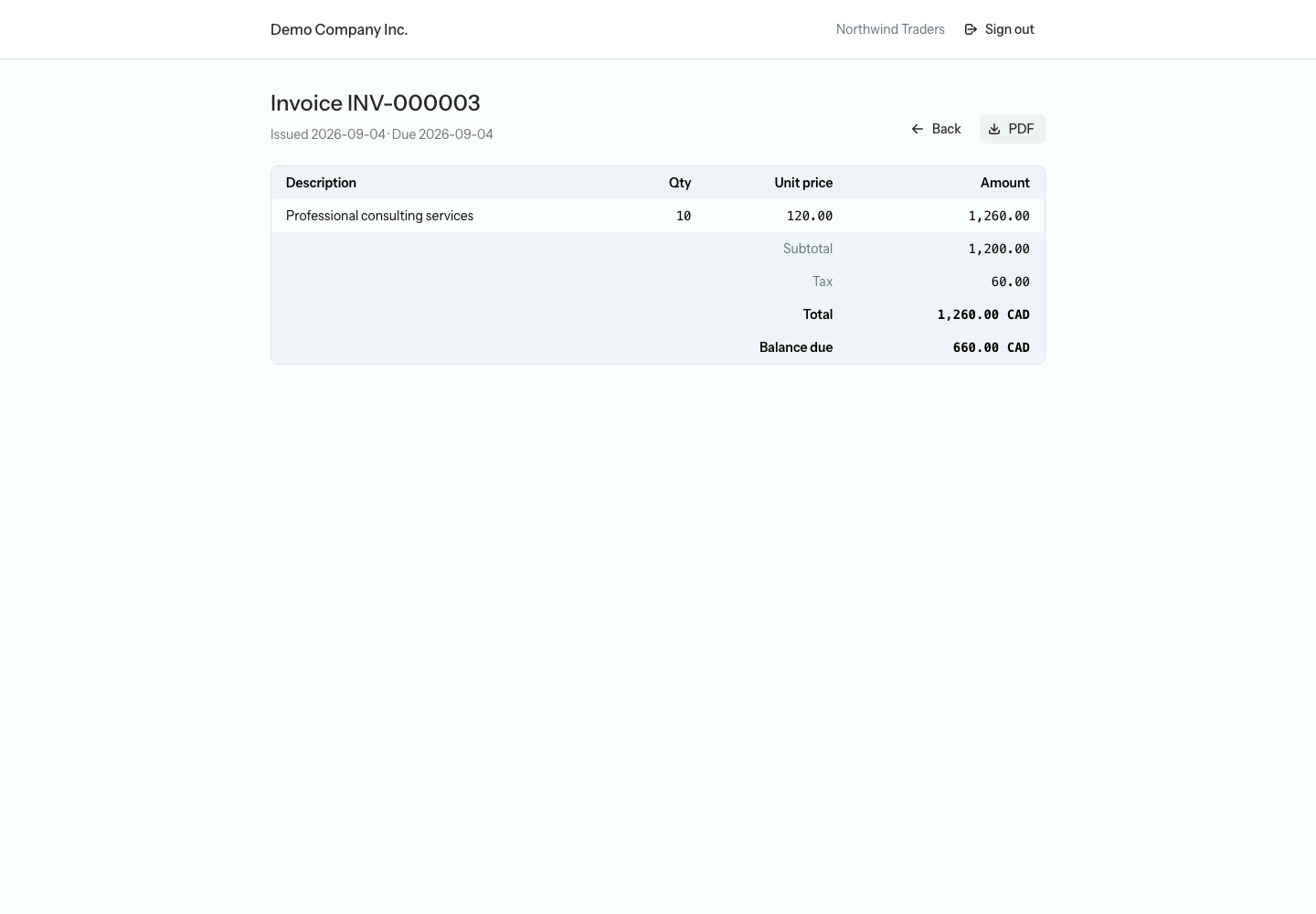
The link in an invoice or reminder email opens that invoice’s own page, headed with its number and its Issued and Due dates. It lists each line’s Description, Qty, Unit price, and Amount, then the Subtotal, Tax, Total, and the Balance due. PDF opens the invoice PDF in the browser for viewing or saving, Back goes to the dashboard, and — when online payments are on and the invoice still has a balance — Pay now starts a card payment. If you bill in stages, the page also shows the Payment schedule with each milestone’s label, due date, amount, and status, and any payment instructions you have set appear under a “How to pay” heading for as long as the invoice has a balance.
Paying by card
Once you connect Stripe, customers can pay by card straight from the portal. Whichever Pay now button they use, the “Pay your balance” screen settles their whole outstanding balance — its subheading reads “Paying” followed by the total and currency, never a single invoice — because the app totals every open invoice on the server (never trusting the browser) and hands that amount to Stripe’s secure card form. The form loads in the page (“Loading secure payment form…” for a moment), the customer enters their card and selects Pay now, and Stripe returns them to the dashboard. Stripe then notifies the app, which records the payment and emails the customer a “Payment received” message quoting the receipt number, with a View your account link back to the portal. A customer who owes nothing is sent back to the dashboard instead of the pay screen.
Note — What a card payment does to your books. A successful card payment posts back in the staff app as a customer receipt — posted automatically, not left as a draft — dated the day it lands, with the memo “Online card payment” and Stripe’s payment identifier as its reference. It debits the “Stripe Clearing” account and credits Accounts Receivable, applied across the customer’s open invoices oldest-due first, and is tagged with the “Card (Stripe)” payment method. Stripe’s processing fee posts as a separate journal entry that debits “Merchant Processing Fees” and credits Stripe Clearing, so the clearing account nets to what Stripe actually pays out to your bank. Payments are matched on Stripe’s identifier, so a webhook retry never double-posts. You will find the receipt under Sales → Receipts (Revenues → Receipts in a non-profit organization) like any other.
Tip. Prefer e-transfer or a bank deposit? Under Settings → Invoices, fill in “How customers can pay” in the Payment instructions section. The text appears under a “How to pay” heading on the pay screen and on any invoice that still has a balance — with or without Stripe connected — so customers always know how to reach you. It does not show on the dashboard, so a customer who owes nothing will not see it.
Heads up — Foreign-currency invoices. The portal is built for invoices in your home currency. An invoice you raised in another currency shows its amounts labelled with your home currency, and Pay now would charge that figure as-is. For customers you bill in a foreign currency, collect payment outside the portal — your payment instructions still show them how.
Turning on online payments
Only the organization’s owner can connect Stripe. Open Settings → Organizations, select Edit organization (the pencil) on your organization, and scroll to the Online payments section — “Connect Stripe so customers can pay invoices by card in the payment portal.” While nothing is linked it reads “Not connected.” The wider settings page is described under Online payments (Stripe) on the Settings page.
To connect Stripe:
- Select Connect Stripe. You are sent to Stripe to sign in and authorize the link.
- Approve the connection. Stripe brings you back to your organization’s page. If you back out instead, you land on the Organizations list and nothing changes. No message confirms either outcome, so look at the Online payments section to see whether the link took.
- The section now reads “Stripe connected” with your Stripe account id, and every Pay now button in the portal goes live.
Connecting also sets up everything the receipts need — a “Stripe Clearing” current-asset account, a “Merchant Processing Fees” expense account, and a “Card (Stripe)” payment method — so card receipts post cleanly with no extra setup. Select Disconnect in the same place to turn online payments back off. It takes effect at once, with no confirmation step: the page reloads with the section reading “Not connected.” again, and receipts already posted are untouched.
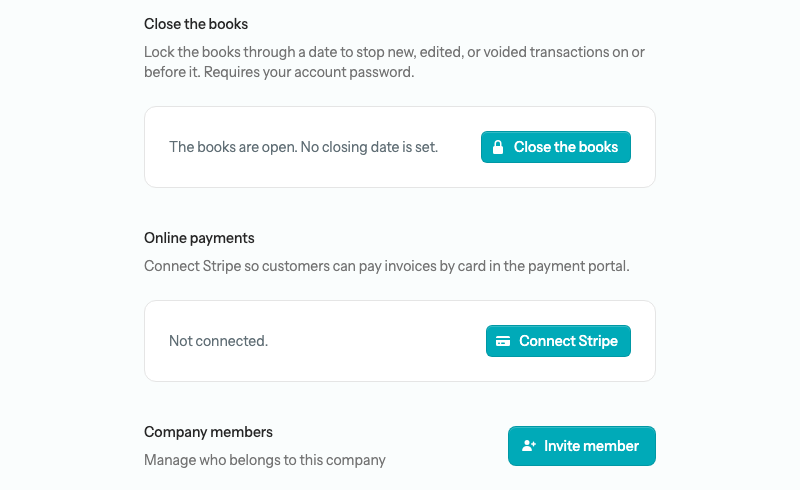
Heads up — When the Stripe link stops working. Two different things can happen, and only one of them tells you. If you select Disconnect, or you remove LineLedger from your Stripe account on Stripe’s side, the link is simply cleared: the Online payments section goes back to “Not connected.”, the invoice page hides its Pay now button, and a customer who selects Pay now on the dashboard sees “Online payments unavailable — This business isn’t accepting online card payments right now.” No email is sent, so reconnecting is up to you. If instead the link breaks while the app still believes it is connected, the app finds out the moment a customer tries to pay: the section switches to “Stripe connection needs attention — Card payments are paused until you reconnect your Stripe account.” with a Reconnect Stripe button, and the owner receives one email, “Action needed: reconnect Stripe to keep accepting card payments”. Either way, invoices and statements stay fully readable — only card payment pauses until you reconnect.
Reports tied to this area
- Contact statement — the staff view of the same statement a customer sees in the portal, with the Rep and Memo columns the portal’s on-screen table leaves out.
- AR Aging — every customer’s open balance bucketed by how overdue it is.
- Open Invoices — the open invoices across all customers; each customer’s portal dashboard is their own slice of it.